This page covers everything the app does: how the data fits together, what each file must look like, every step in the admin and every block in your theme. The steps are the same in every trade. What differs is in the tab for your trade. The admin screenshots come from a real run in a development store, the storefront screenshots from our demo shop Broadstock.
An Online Store 2.0 theme such as Horizon or Dawn. Every block is placed in the theme editor; you never touch theme code.
Shopify's free Search & Discovery app. It is the only place a storefront filter can be created, so step 9 needs it. Everything else works without it.
Your product data as spreadsheets saved as CSV. If you do not have any yet, step 4 shows a result with example data first, and the sample files below give you the exact format.
The Full plan for the CSV import, the starter packs and a vehicle picker with more than 50 vehicles. Every block, the data model and the example data are free.
Your trade. Pick it in the tabs below: they list the names to choose, the files to import and the blocks that fit, with a complete set of sample files.
Your trade
What is different in your trade
Pick your trade. The tab lists the names to choose in step 5, the files you import in step 6, the filters and blocks that usually make sense, the complete sample set and how the result looks in a real shop.
Auto & vehicle parts
Starter pack sections (step 5)
What’s in the box · Fitting · Approvals & markings · Warranty
Compatibility data (steps 5 and 6)
Called: Vehicle (Make · Model · Model year from · Model year to · Engine)
Product field: Compatible vehicles
Columns in the file:
handle,make,model,year_from,year_to,engine
vw-golf-vii-1-0-tsi,VW,Golf VII,2012,2020,1.0 TSI
Typical specification rows
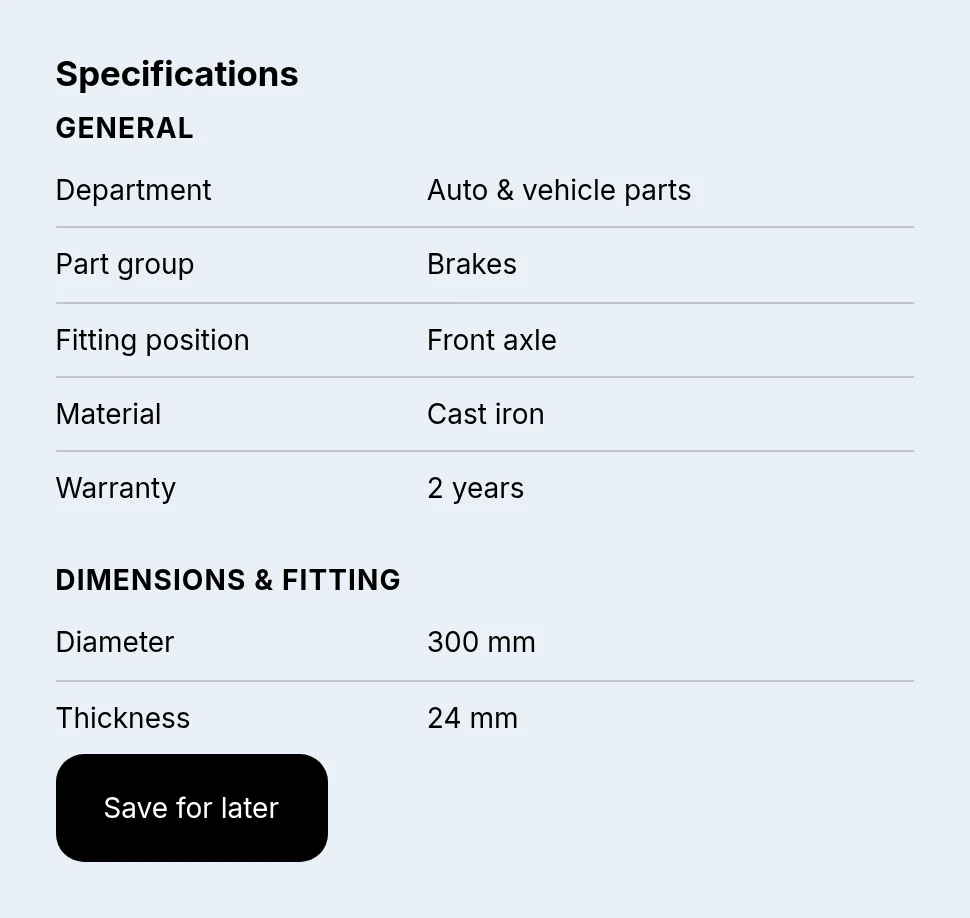
Part group Brakes · Fitting position Front axle · Material Cast iron · Diameter 300 mm · Thickness 24 mm
Exclusion filters (step 8)
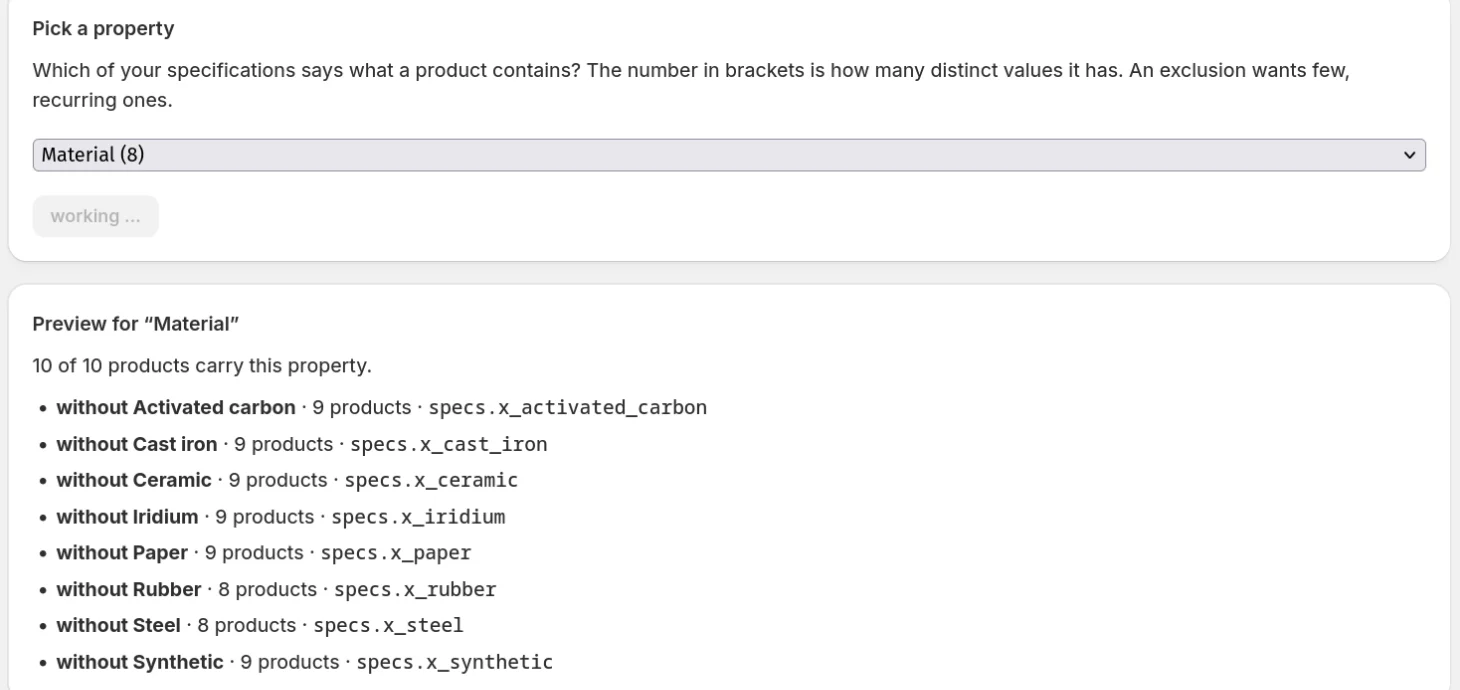
Material, for filters such as “without ceramic”. In the demo store, one property gives eight of them.
Blocks that usually fit (step 10)
Specification table, Compatibility picker above Does it fit?, Part numbers, Documents, Product details, Product finder, Quick view.
Source: 78 vehicles and 244 assignments from Broadstock.
In a real shop (Broadstock)
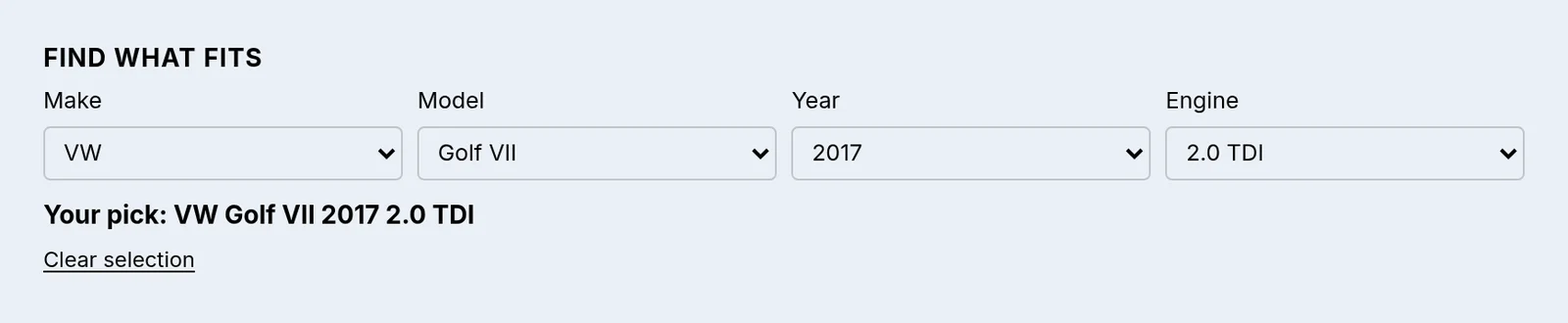
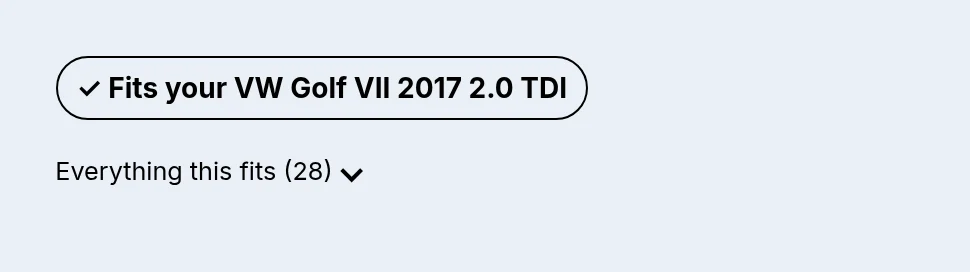
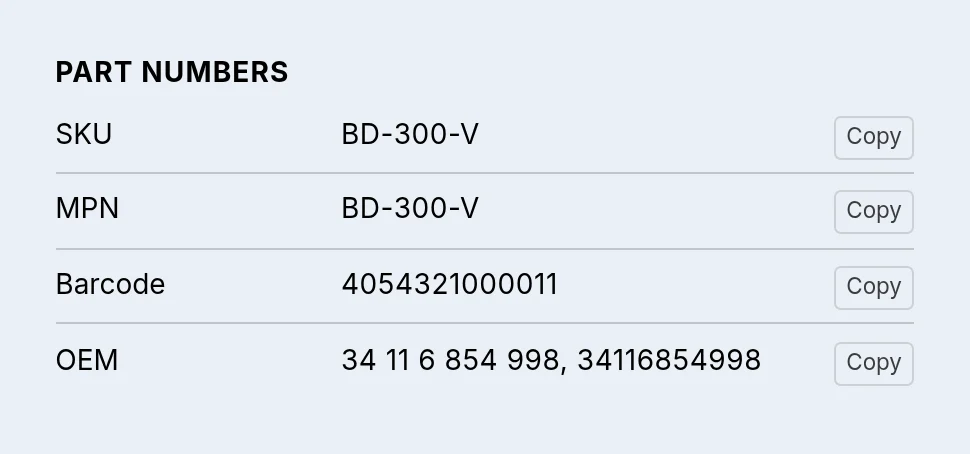
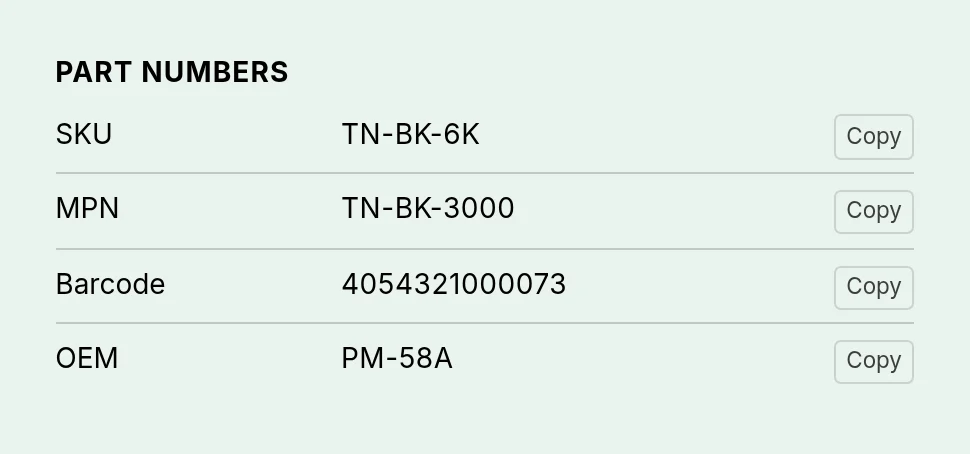
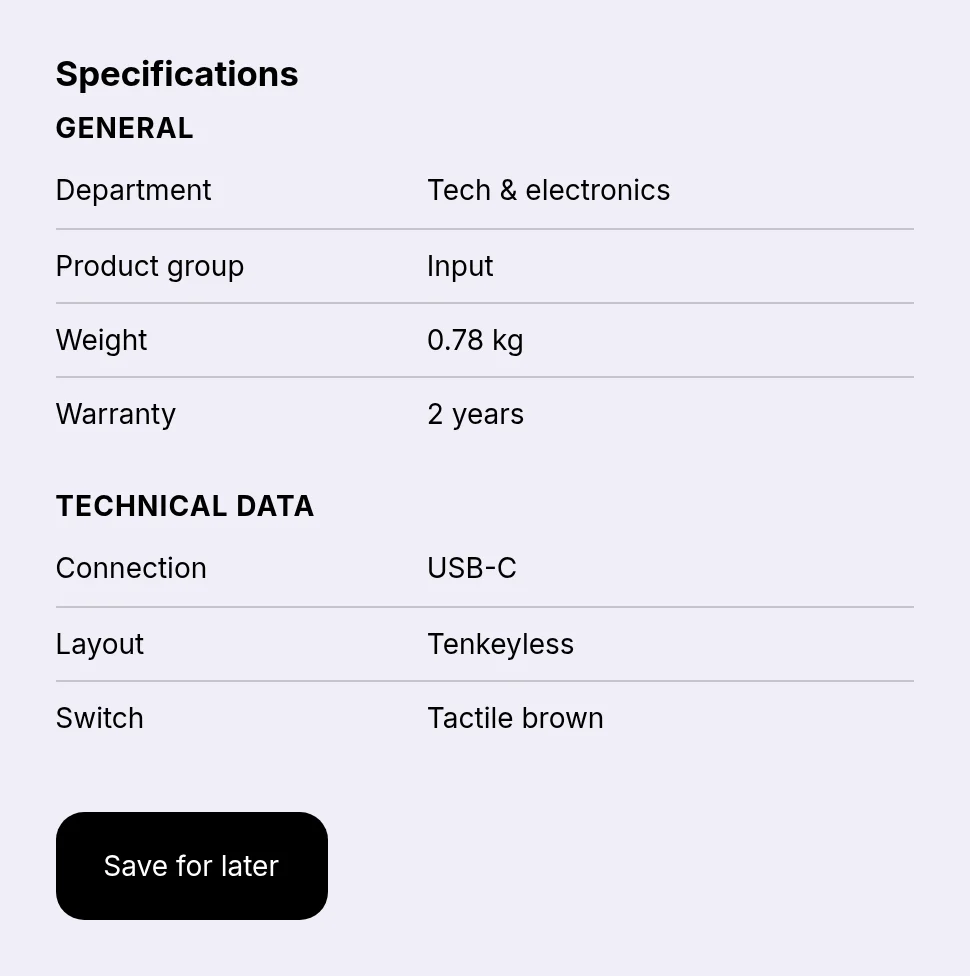
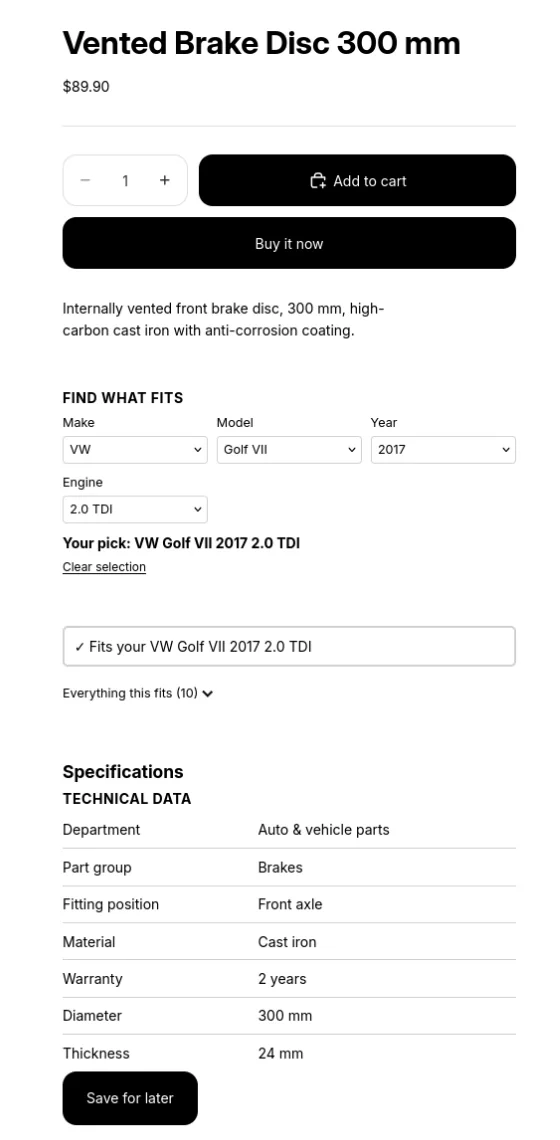
Specification table of a brake discCompatibility picker with VW Golf VII 2017 2.0 TDI chosenFits your VW Golf VII 2017 2.0 TDIPart numbers: SKU, MPN, barcode, OEM with copy buttons
Tools & industry
Starter pack sections (step 5)
What’s in the box · Power & battery system · Safety & protective equipment · Documents
Compatibility data (steps 5 and 6)
Called: Device (Make · Battery system · Valid from · Valid to · Device)
Here “model” holds the battery system and “engine” the device.
Typical specification rows
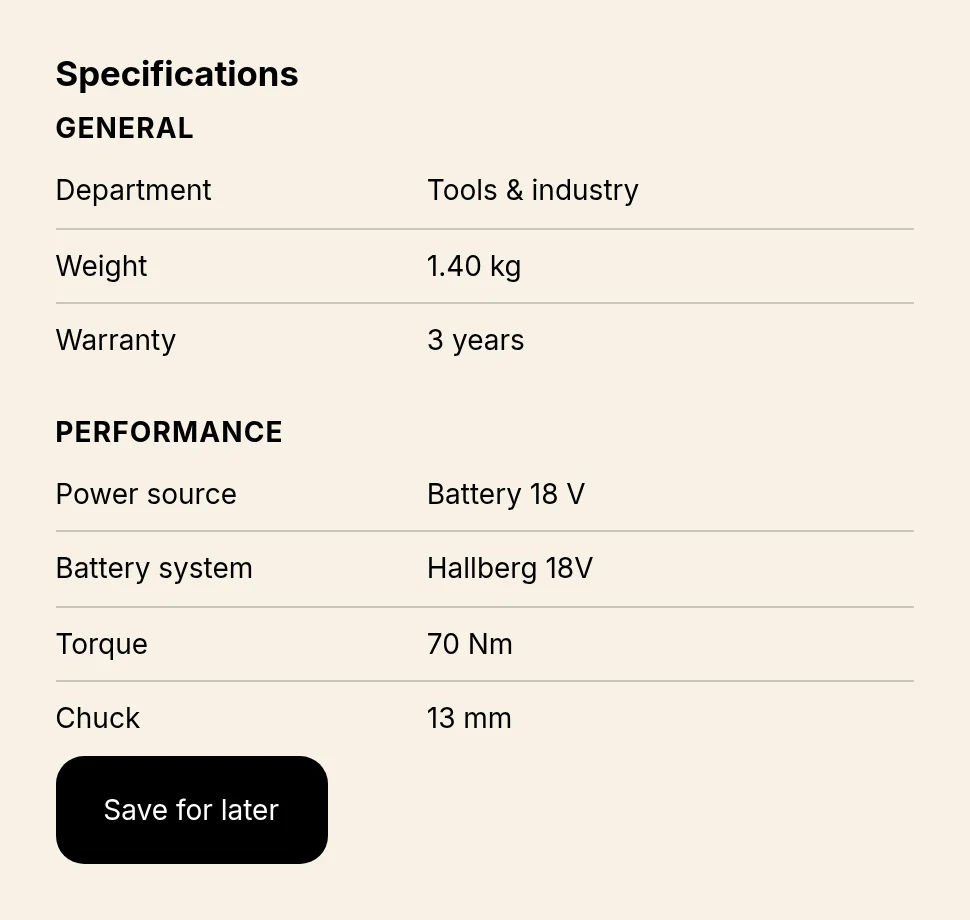
Power source Battery 18 V · Battery system Hallberg 18V · Torque 70 Nm · Chuck 13 mm · Weight 1.40 kg
Exclusion filters (step 8)
Useful where a product contains something buyers want to avoid, such as a material. Many tool shops do without.
Blocks that usually fit (step 10)
Specification table, Documents (declarations, manuals), Part numbers, Product details, Compatibility picker above Does it fit? for batteries and accessories, Product finder, Quick view.
Source: Specifications and documents from Broadstock; the four compatibility targets are our own example.
In a real shop (Broadstock)
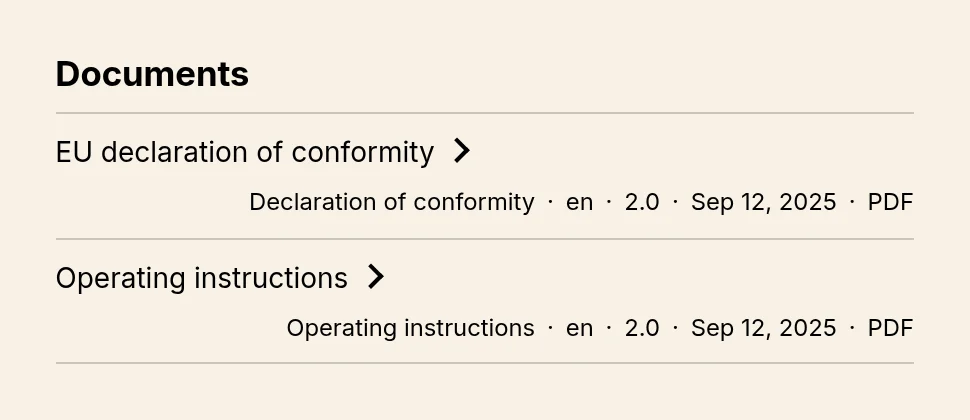
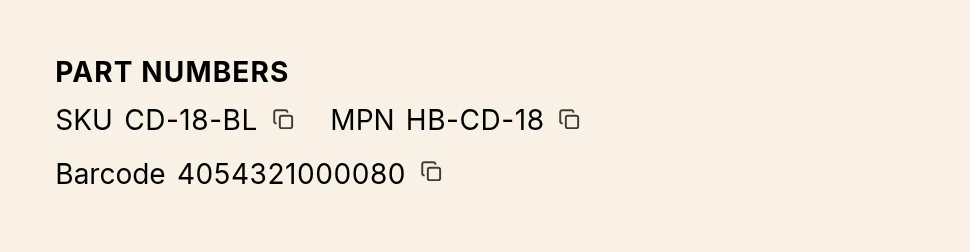
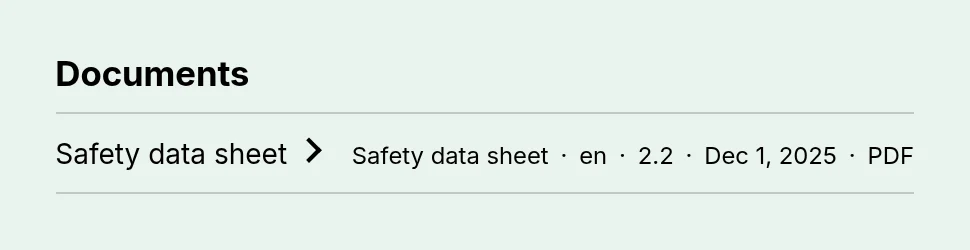
Specification table of a cordless drillDocuments: EU declaration of conformity and operating instructionsPart numbers in the compact layout with copy icons
Office & consumables
Starter pack sections (step 5)
Compatibility · Yield & capacity · What’s in the box · Sustainability & disposal
Compatibility data (steps 5 and 6)
Called: Printer (Make · Series · Valid from · Valid to · Model)
Here “model” holds the series and “engine” the printer model.
Typical specification rows
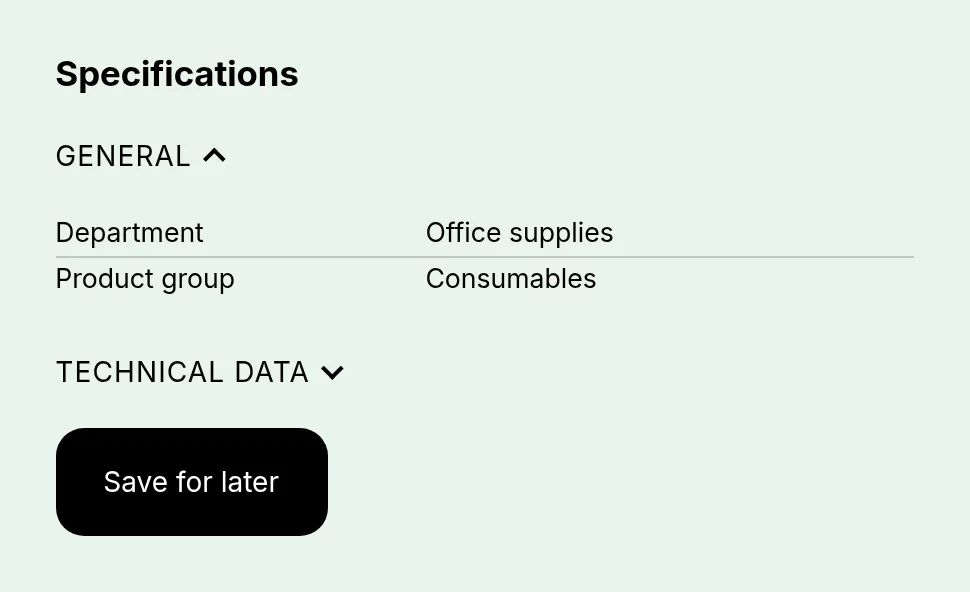
Department Office supplies · Product group Consumables · Page yield · Colour
Exclusion filters (step 8)
Rarely needed. A property like “Contains” lets you offer “without …” filters if your range has one.
Blocks that usually fit (step 10)
Specification table (here with collapsible groups), Part numbers, Documents (safety data sheets), Product details, Compatibility picker above Does it fit?, Product finder, Quick view.
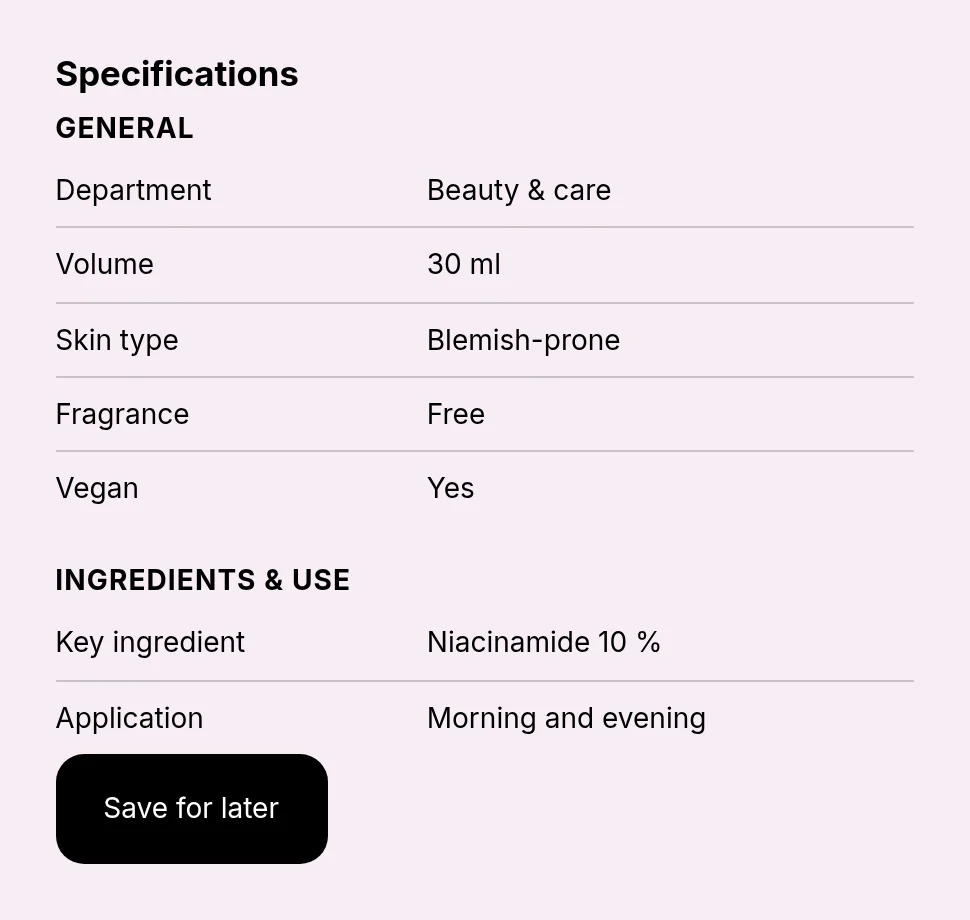
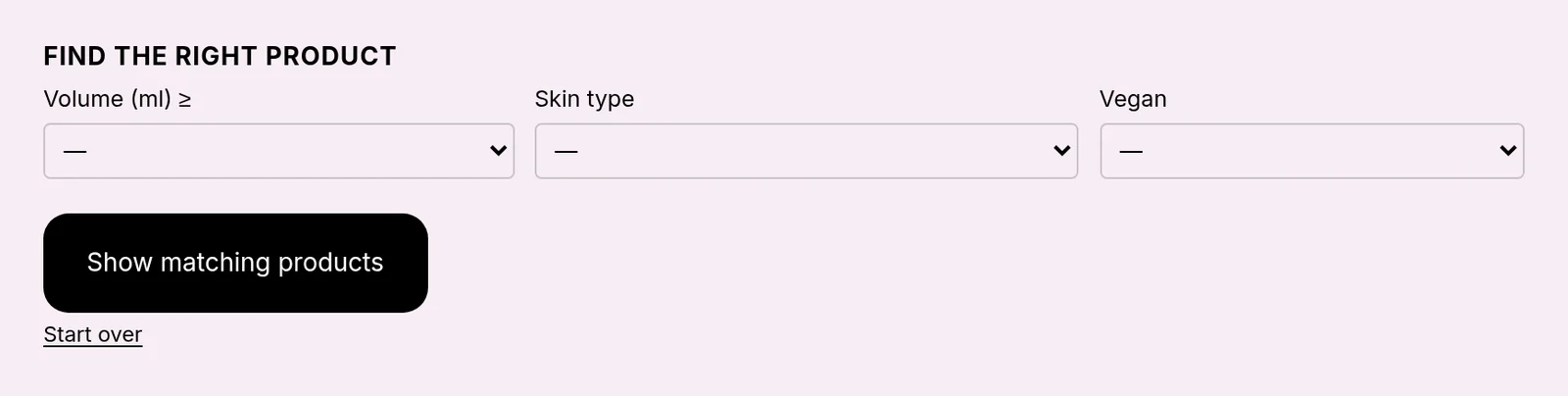
Specification table of a face serumProduct finder for beauty
Food
Starter pack sections (step 5)
Ingredients · Nutrition · Allergens · Origin & shelf life
Compatibility data (steps 5 and 6)
Not used in this trade. Skip the compatibility file in step 6; the picker and Does it fit? are not needed.
Typical specification rows
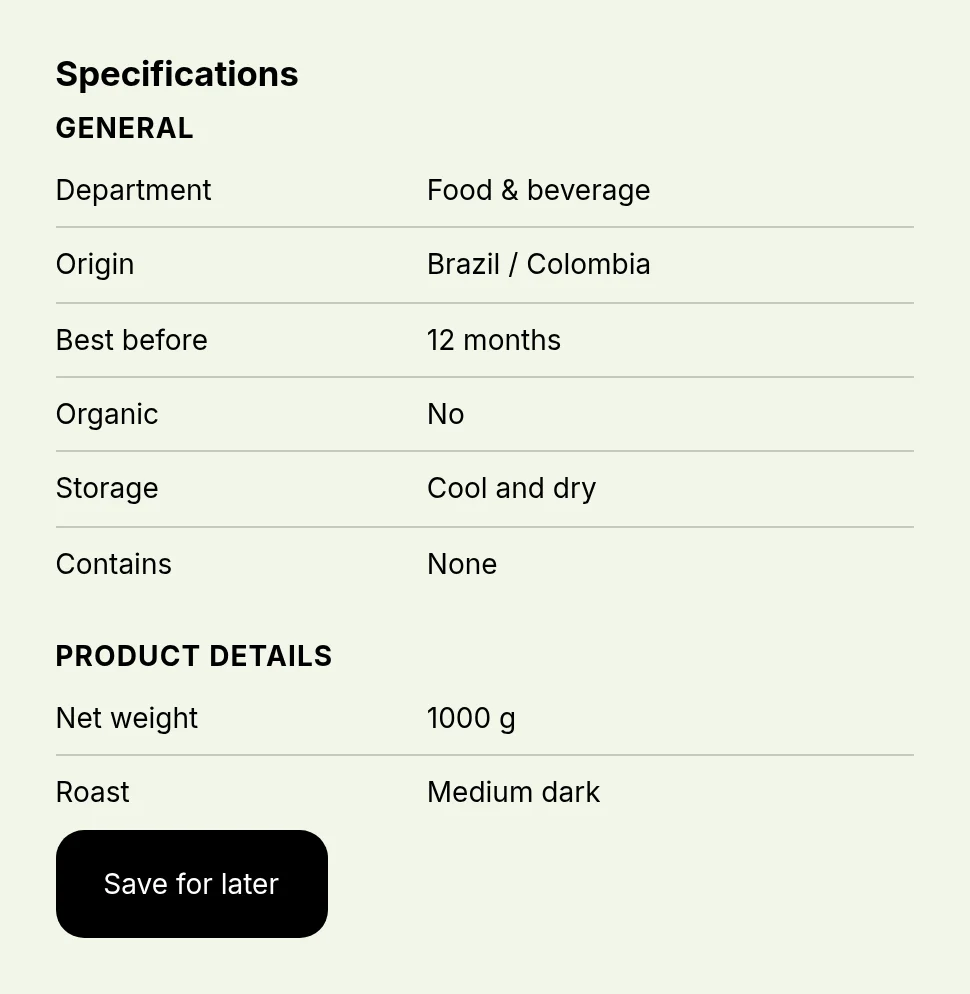
Origin Brazil / Colombia · Best before 12 months · Organic No · Contains None · Net weight 1000 g
Exclusion filters (step 8)
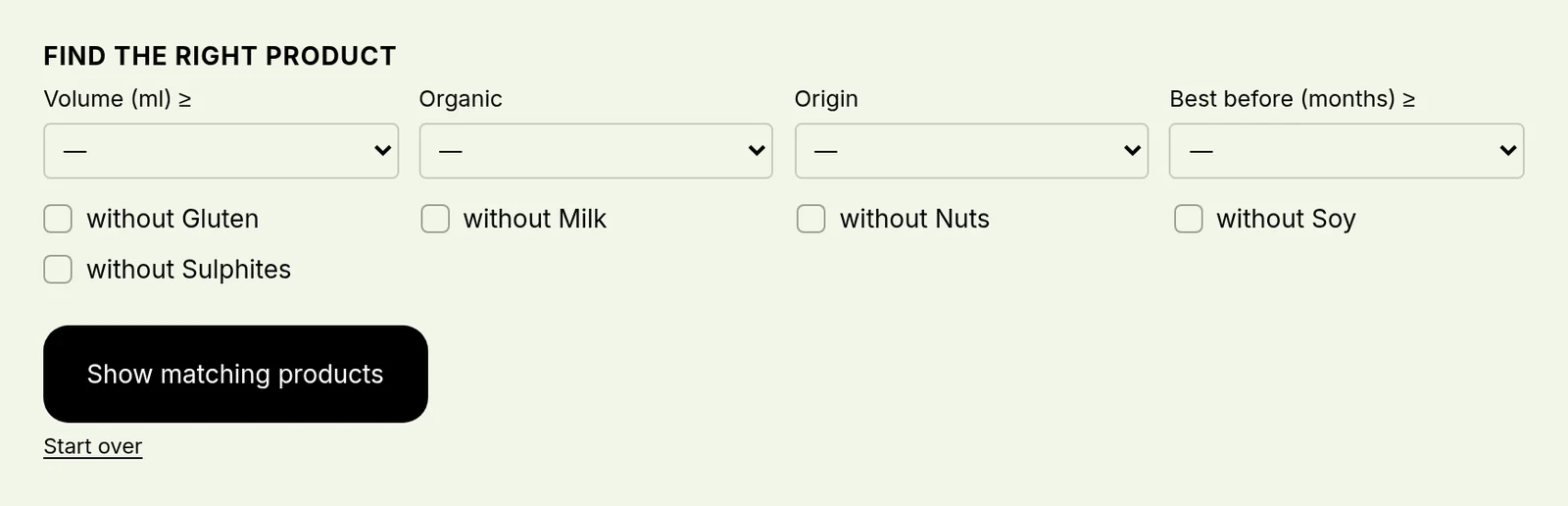
Allergens, maintained as what a product contains (“Contains: Gluten, Nuts”), for filters such as “without gluten” or “without nuts”. Shopify cannot filter for what is not there; the app derives it. The finder offers them as checkboxes.
Blocks that usually fit (step 10)
Product details (the starter pack sections), Specification table, Product finder with exclusions, Quick view.
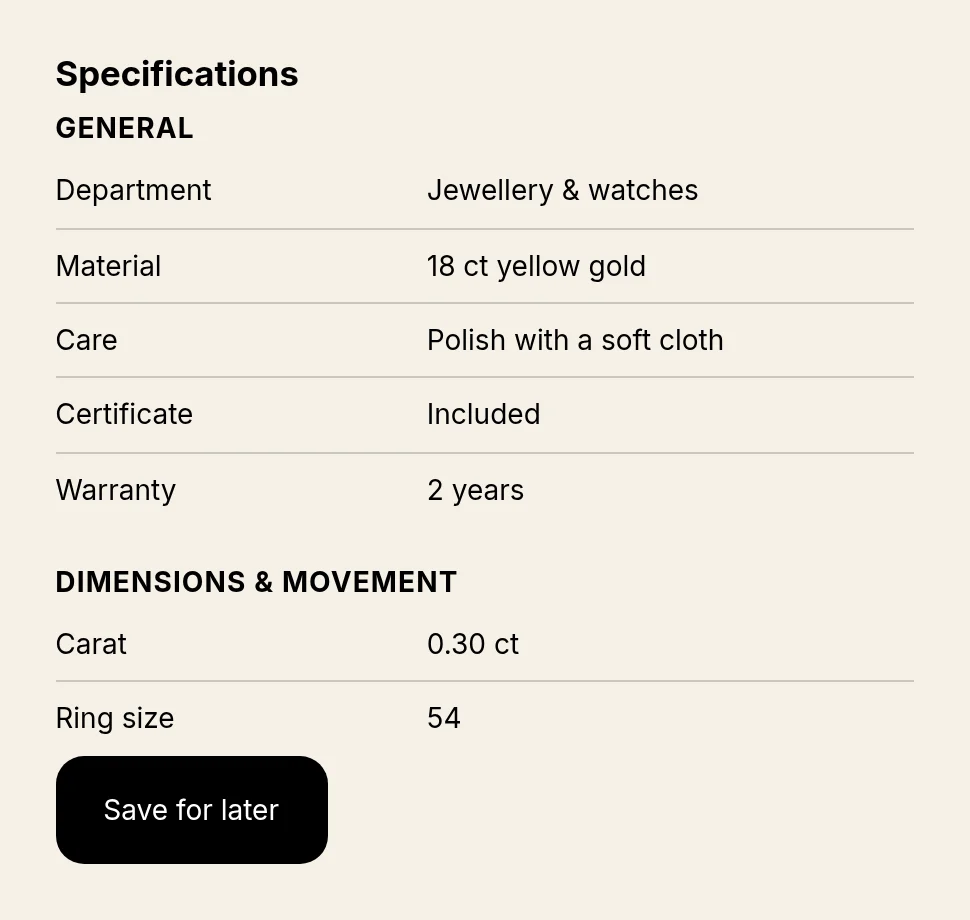
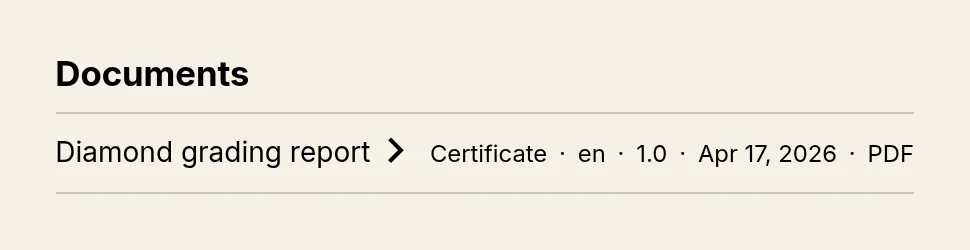
Specification table of a solitaire ringDocuments: diamond grading report
Step by step
The twelve steps, in this order
Do them in this order. The app's Getting started page follows the same order and marks each step Done, Open, Not yet or Cannot tell; it reads your shop, so what is missing there is really missing. The reference part below the steps explains the data model, every field and the import rules in detail.
01Install and open Getting started
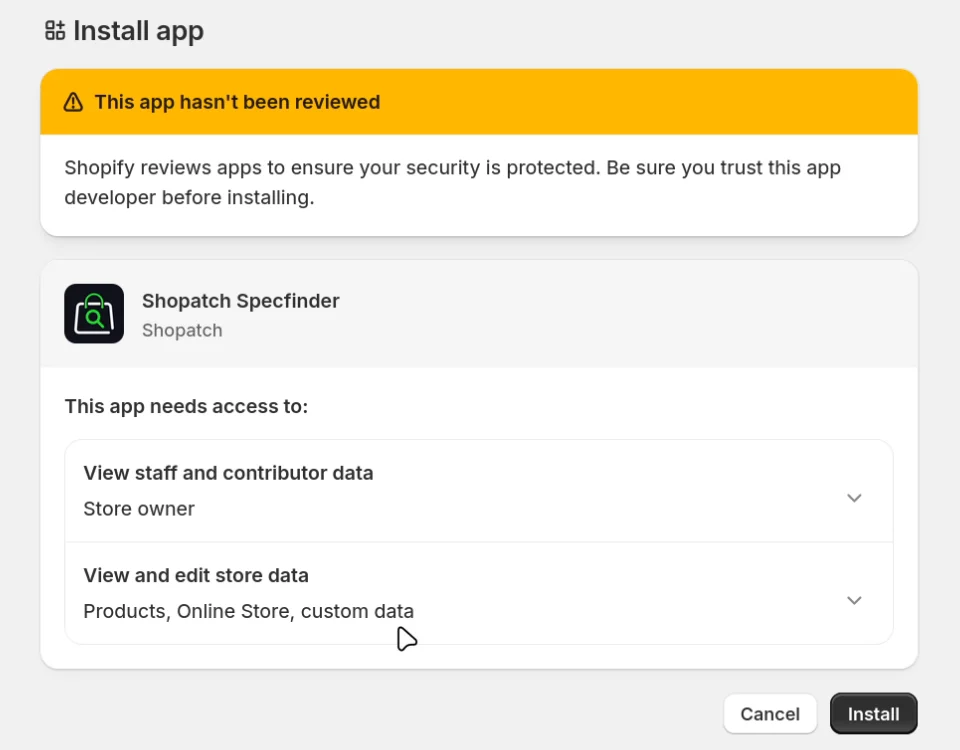
Install Shopatch Specfinder from the Shopify App Store. It asks for access to products, the online store and custom data, and nothing else.
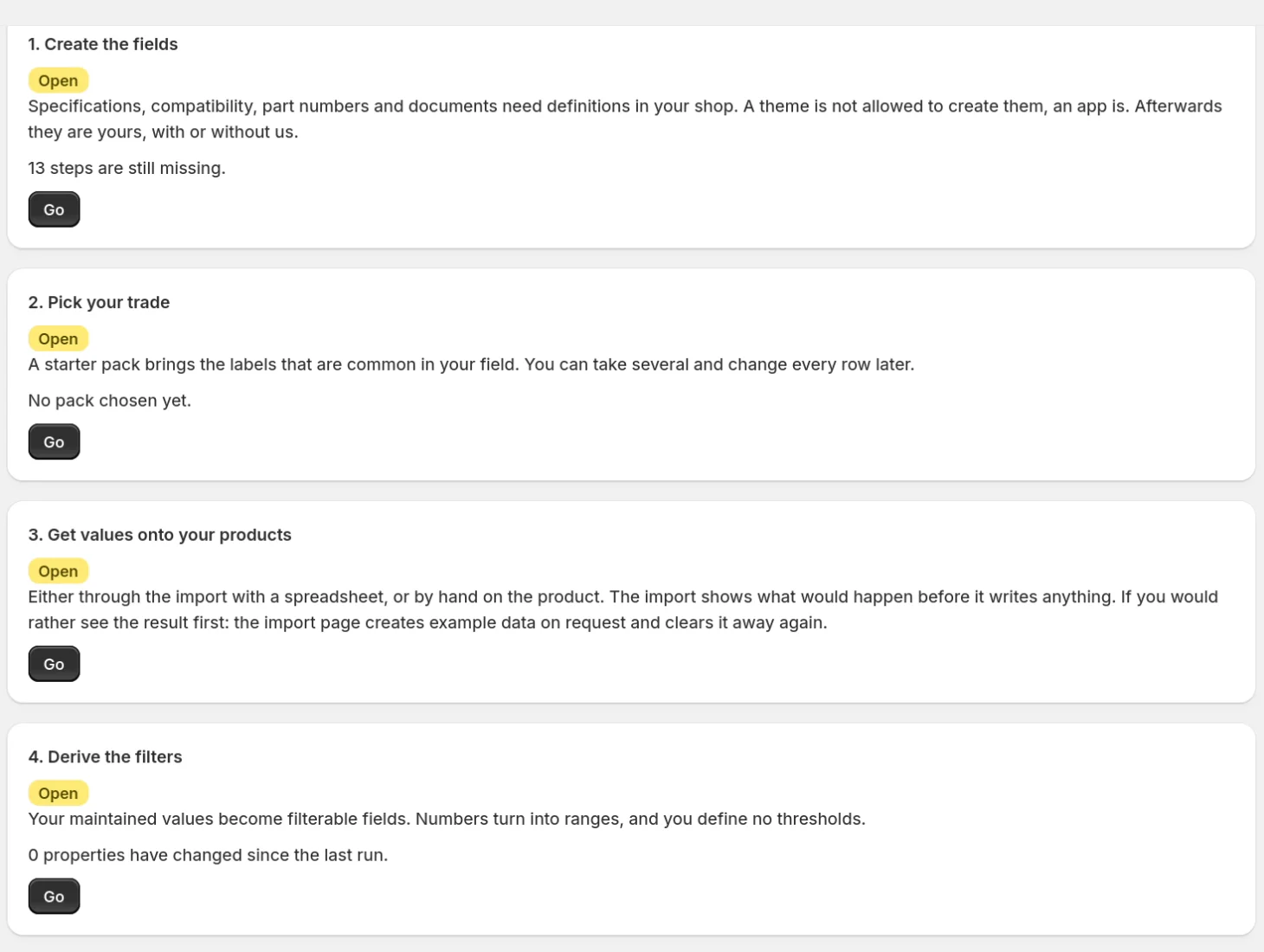
Clicking the app's name in your admin opens the overview. Getting started lists every step and links to the page where you do it.
Shopify install screen: the app needs access to staff data, products, online store and custom dataGetting started: Create the fields, Pick your trade, Get values onto your products, Derive the filters
02Choose your plan
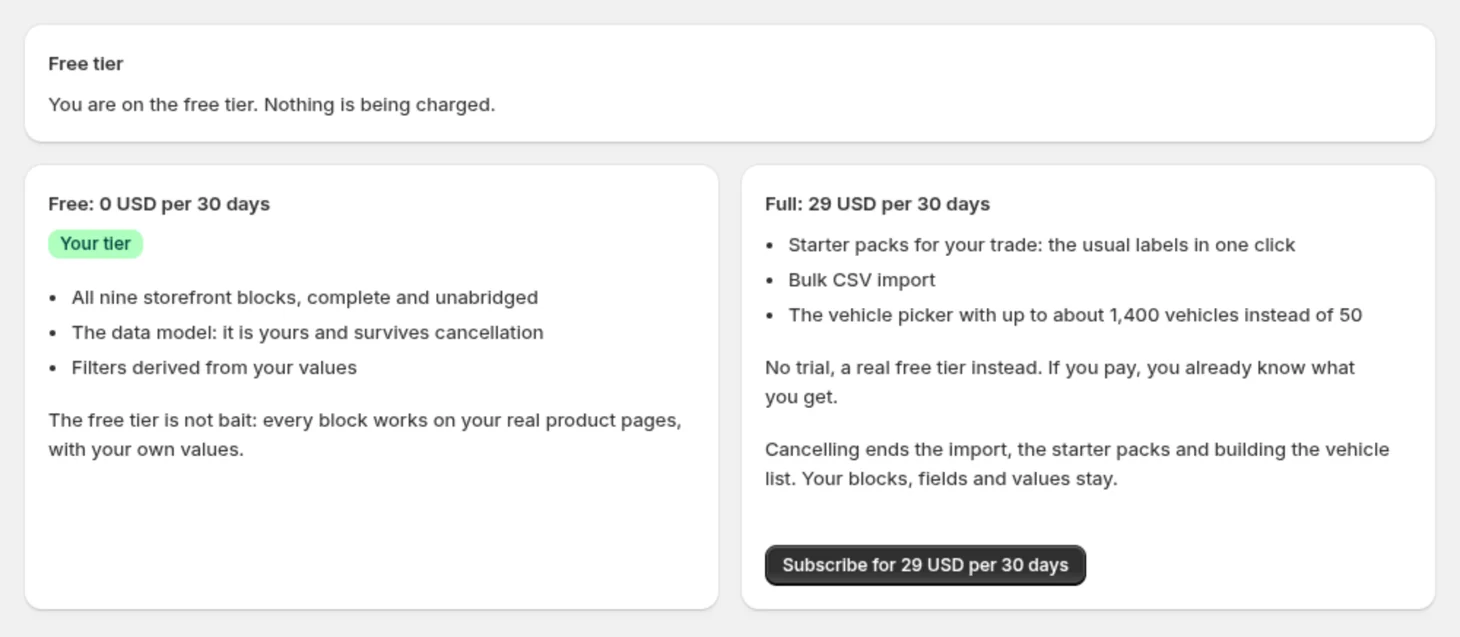
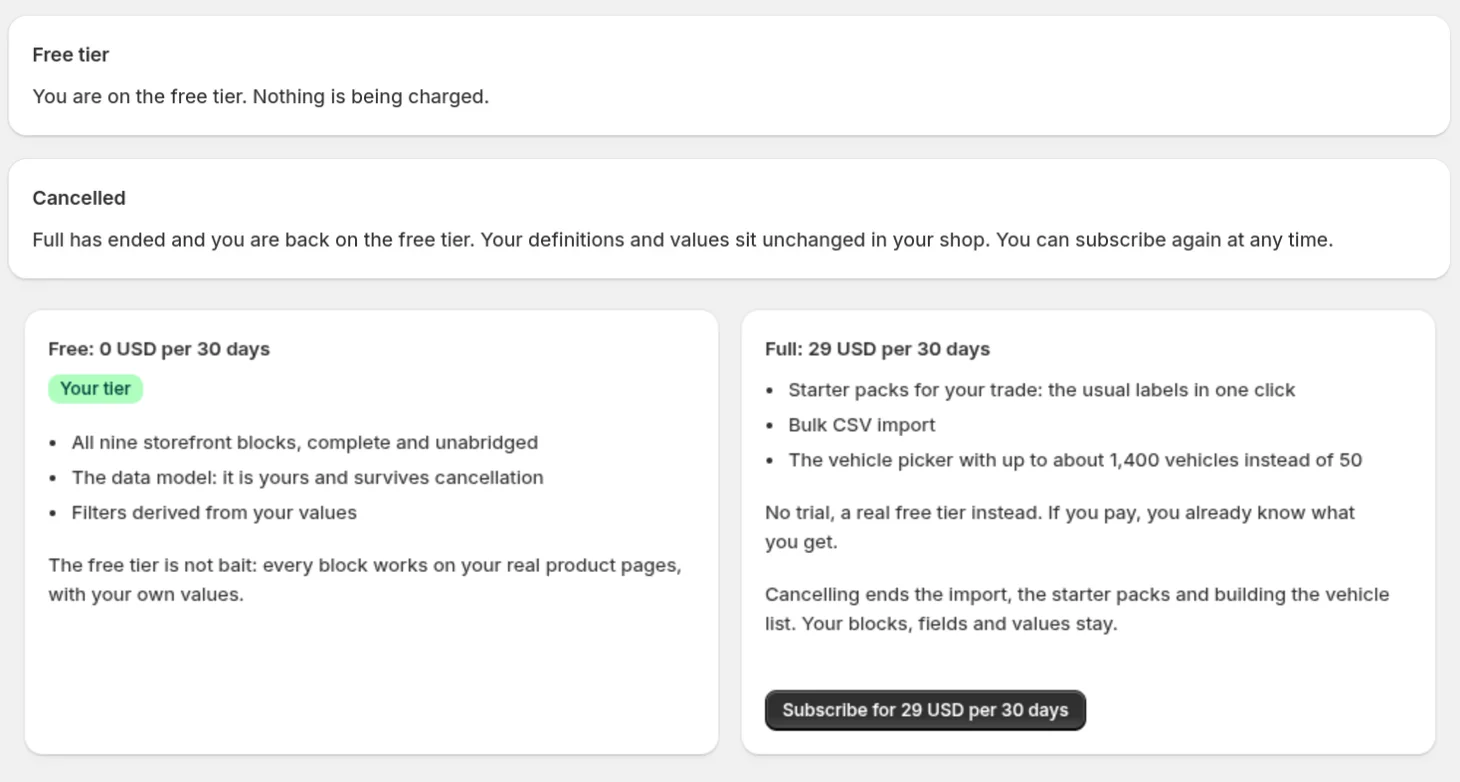
Free covers all nine blocks, the data model and the derived filters. Full (29 USD per 30 days) adds the CSV import, the starter packs and a vehicle picker with up to about 1,400 vehicles instead of 50.
Plan → Subscribe opens Shopify's approval page; the charge appears on your Shopify bill. Cancelling does not need an uninstall, see the end of this guide.
Plan page with the free tier and Full side by side
03Create the fields
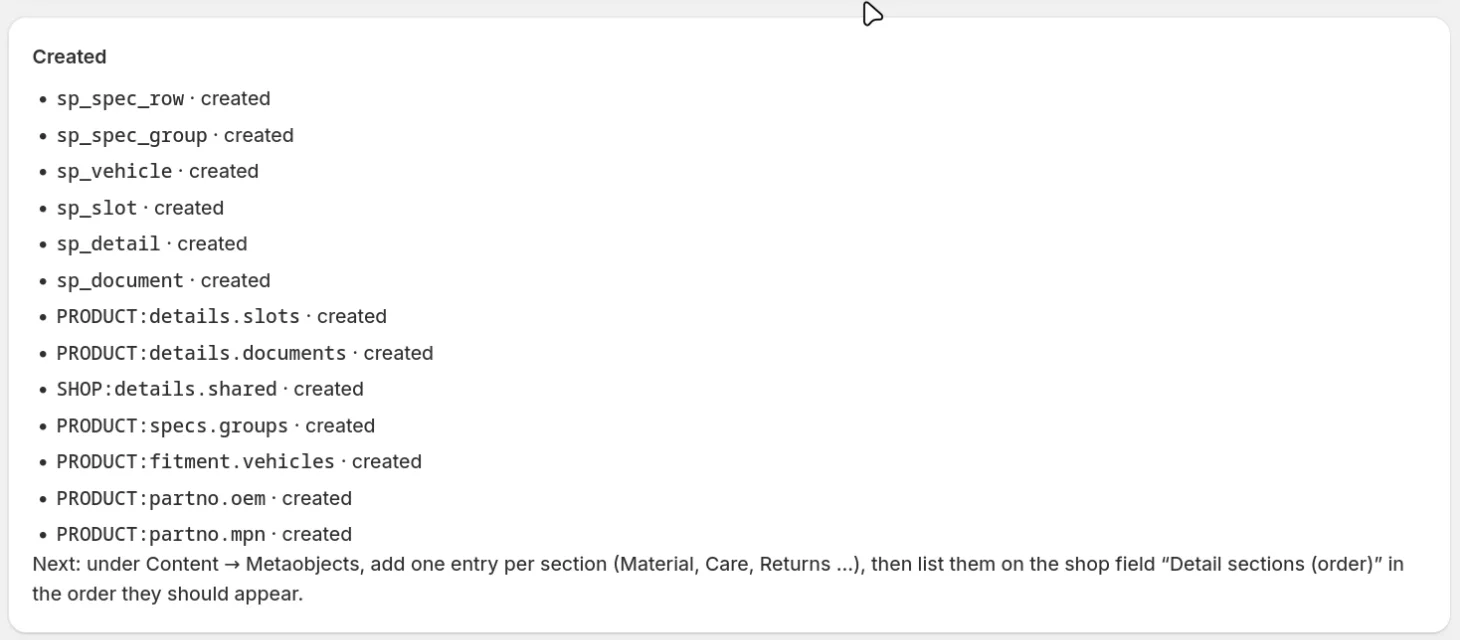
Setup → Create definitions. One click creates the six record types and seven fields described in the reference part below the steps, thirteen definitions in a fresh shop. They belong to your shop and stay if you remove the app.
Running it again is safe: what exists is left untouched and reported as already there.
Setup after Create definitions: every definition marked created
04See a result first (optional)
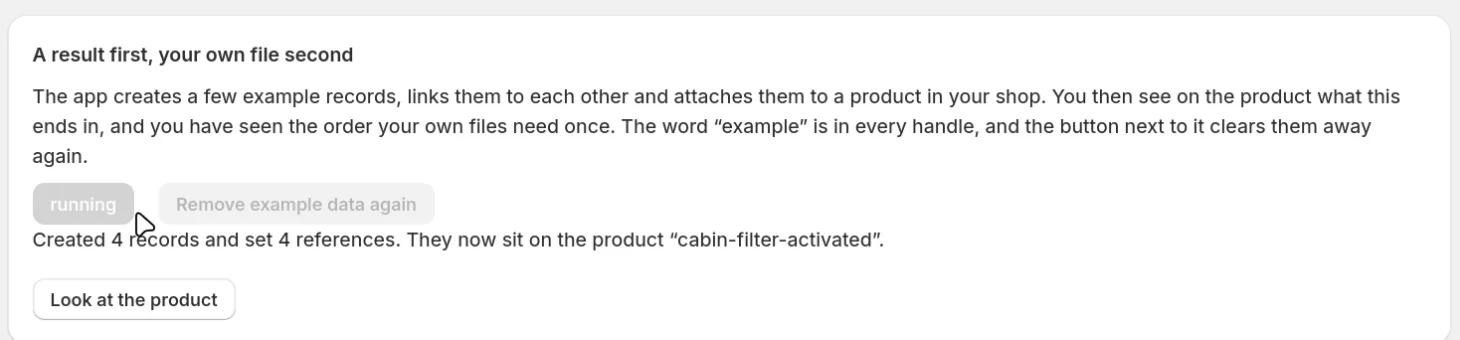
Import → Create example data writes two specification rows and two groups, links them and attaches them to one active product. Look at the product opens it in Shopify's product form, where the Specifications field is filled.
Remove example data again clears everything. Every example handle contains the word “example”, so nothing of yours is touched.
Created 4 records and set 4 references, with the button Look at the productProduct form: the pinned Specifications field holds the example groupsRemoved 4 example records
05Name your compatibility data and pick a starter pack
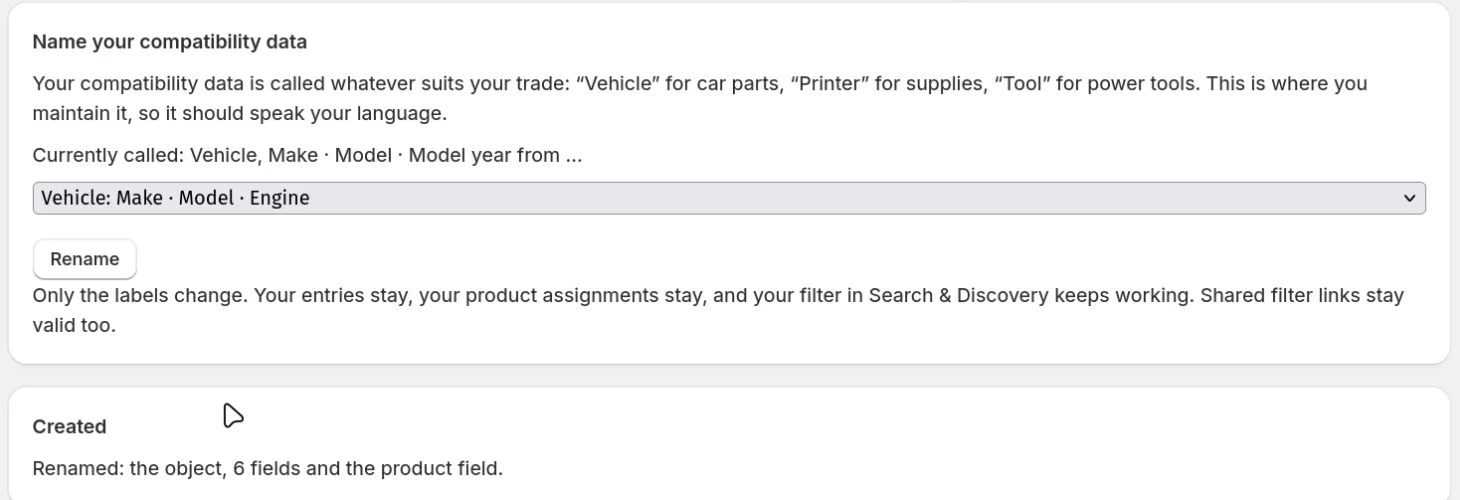
Setup → Name your compatibility data: choose the wording of your trade (see your tab). Make, Model, Engine for vehicles; Make, Series, Model for printers; and so on. Only the labels change; entries, links, filters and shared filter links keep working.
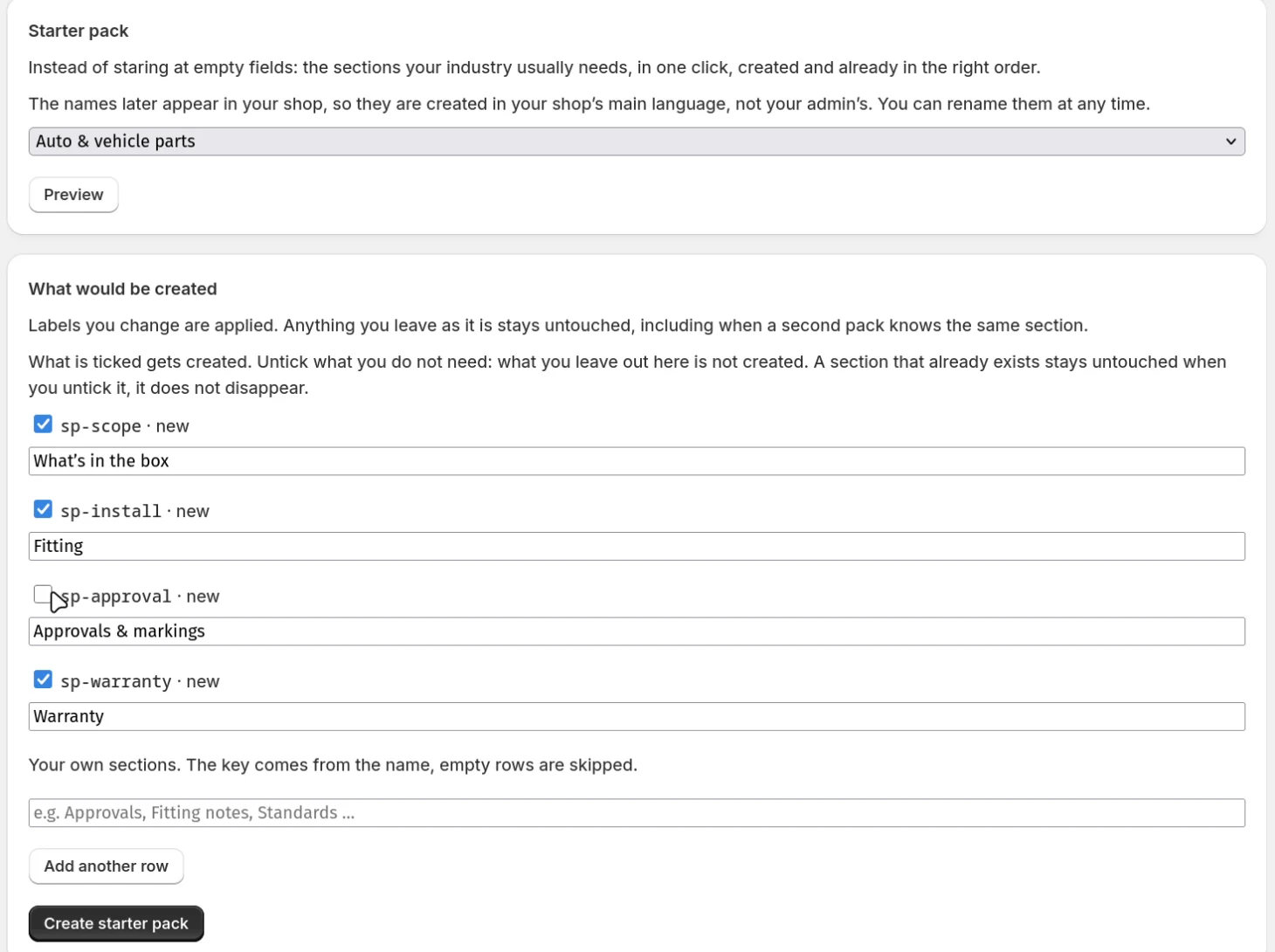
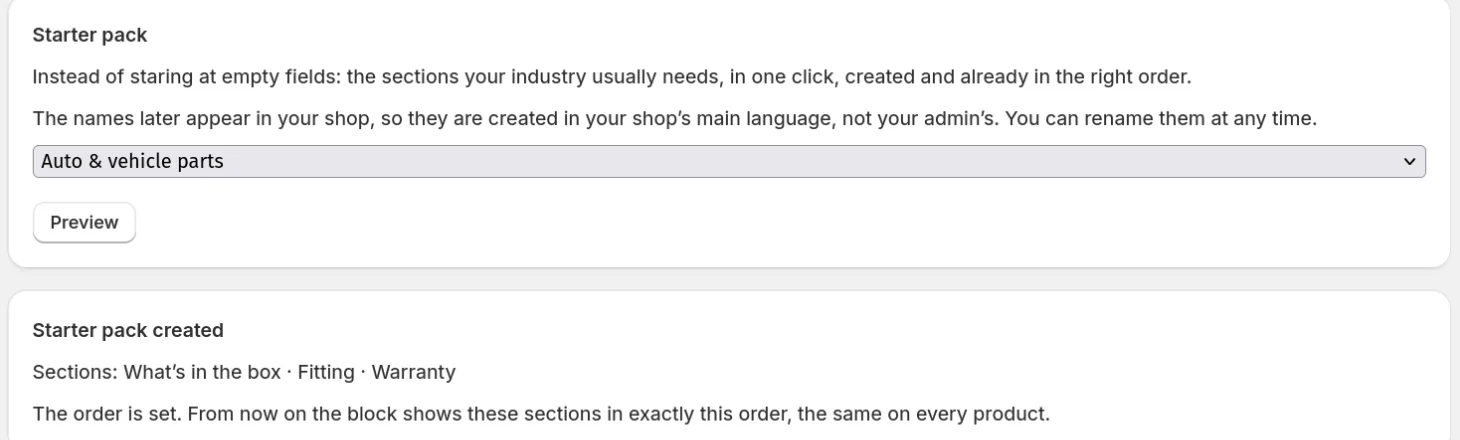
Setup → Starter pack: choose your trade and click Preview. Untick sections you do not need and rename the ones you want to call differently, then Create starter pack. The sections appear in the Product details block in exactly this order, on every product. Running a pack again never deletes a section; a label you change is replaced. Creating the starter pack needs Full; the preview works on the free tier.
Renamed: the object, 6 fields and the product fieldStarter pack preview with one section untickedStarter pack created: three sections in a fixed order
Watch out: Trades without compatibility data skip the naming and go straight to the starter pack.
06Import your data
Work through the three sections in order: records, then links between records, then the assignment to your products. The files for your trade are in its tab above. The rules of each section are under “Reference: the three import sections”, the file format under “Reference: CSV format”.
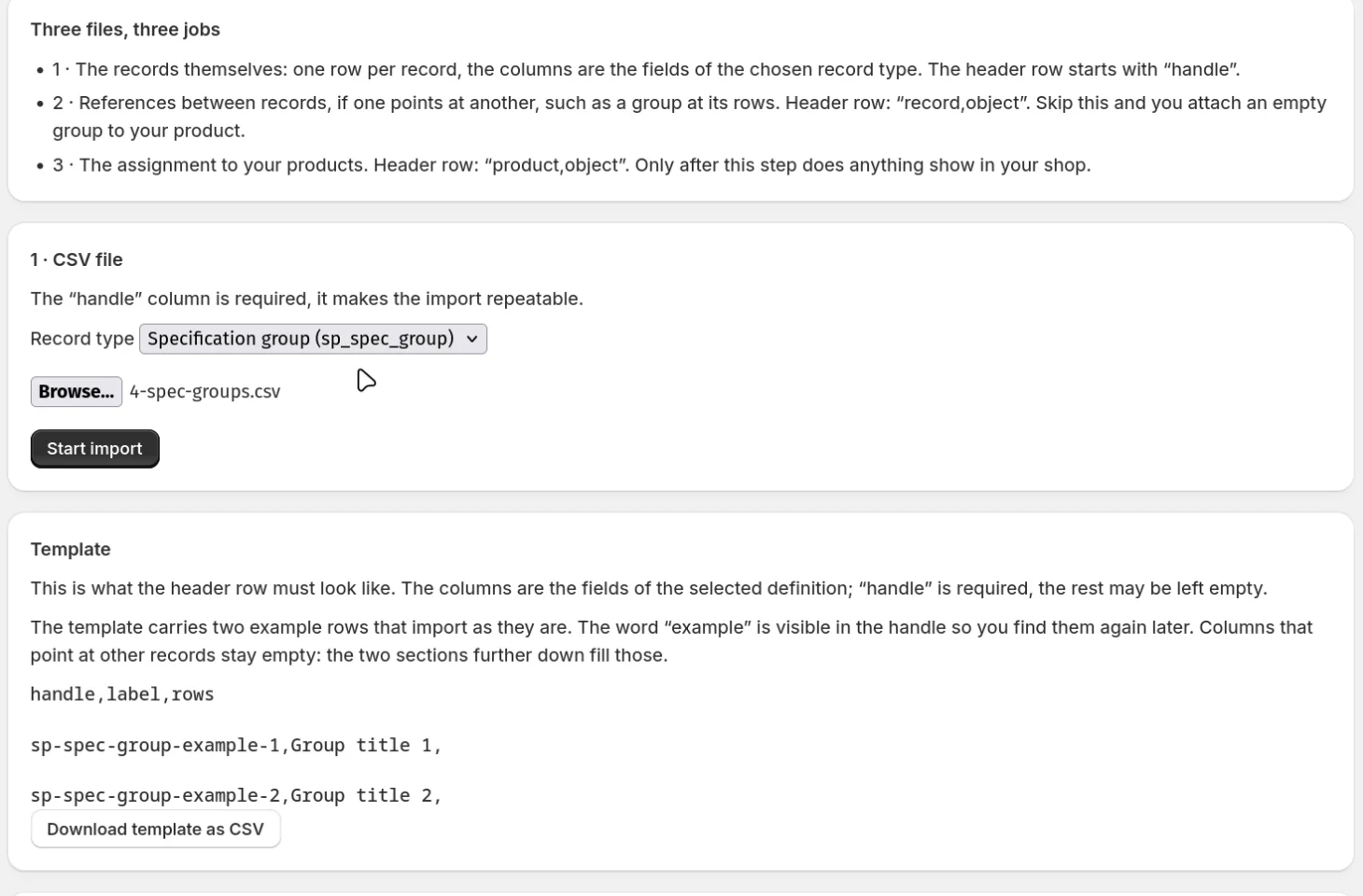
Import page: Three files, three jobs, section 1 with record type and template
Section 1: the records
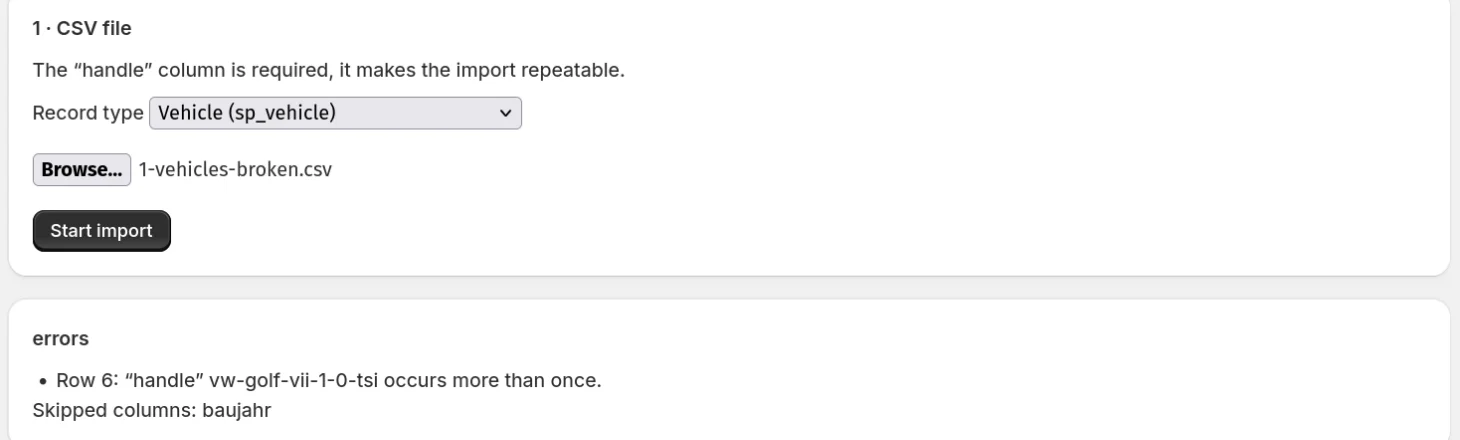
Choose the record type, check the Template box, pick the file, Start import. Errors appear right below the section. Then scroll to Recent runs and wait until the line says done.
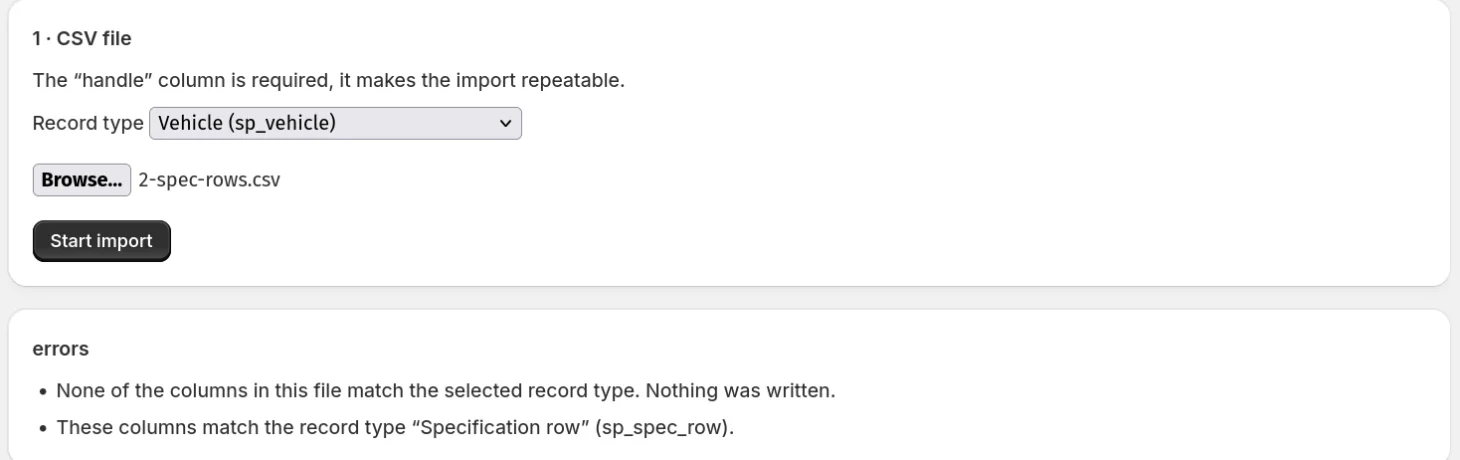
Row 6: handle occurs more than once; skipped column baujahrNone of the columns in this file match the selected record type. Nothing was written. These columns match Specification row.Recent runs: 10, 20 and 41 rows, all done
Watch out: The record type goes back to the first entry after every import.
Section 2: links between records
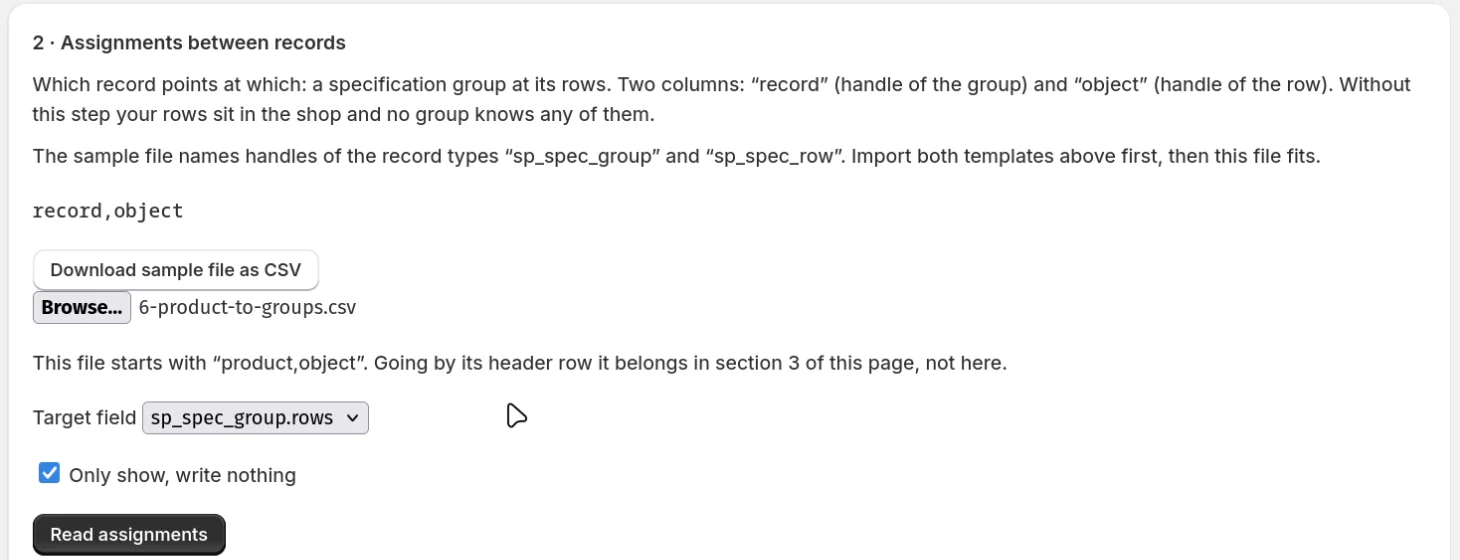
Pick the file. If its header belongs to another section, the app says so immediately. Leave “Only show, write nothing” ticked, Read assignments, check the numbers, untick, Read assignments again.
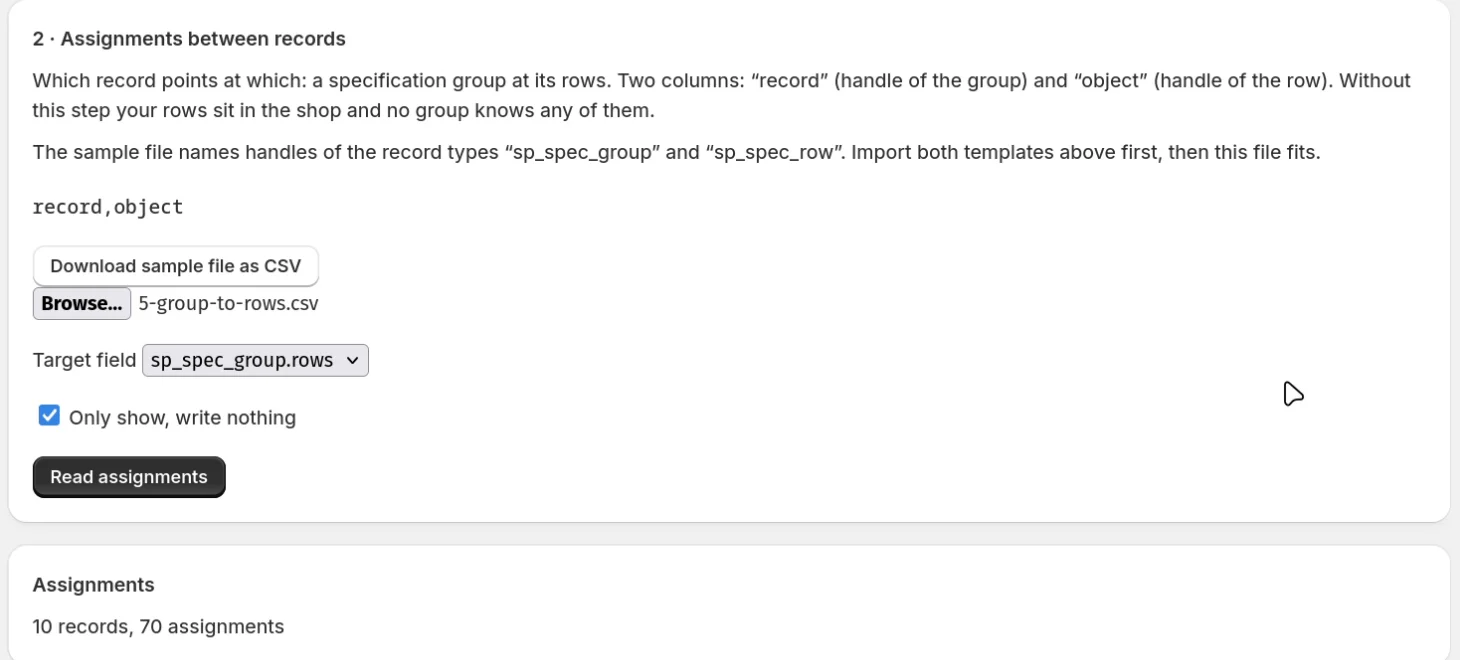
This file starts with product,object. Going by its header row it belongs in section 3 of this page, not here.Dry run: 10 records, 70 assignments
Watch out: “… not found and skipped” means the records do not exist yet. Import them in section 1 first.
Section 3: the assignment to your products
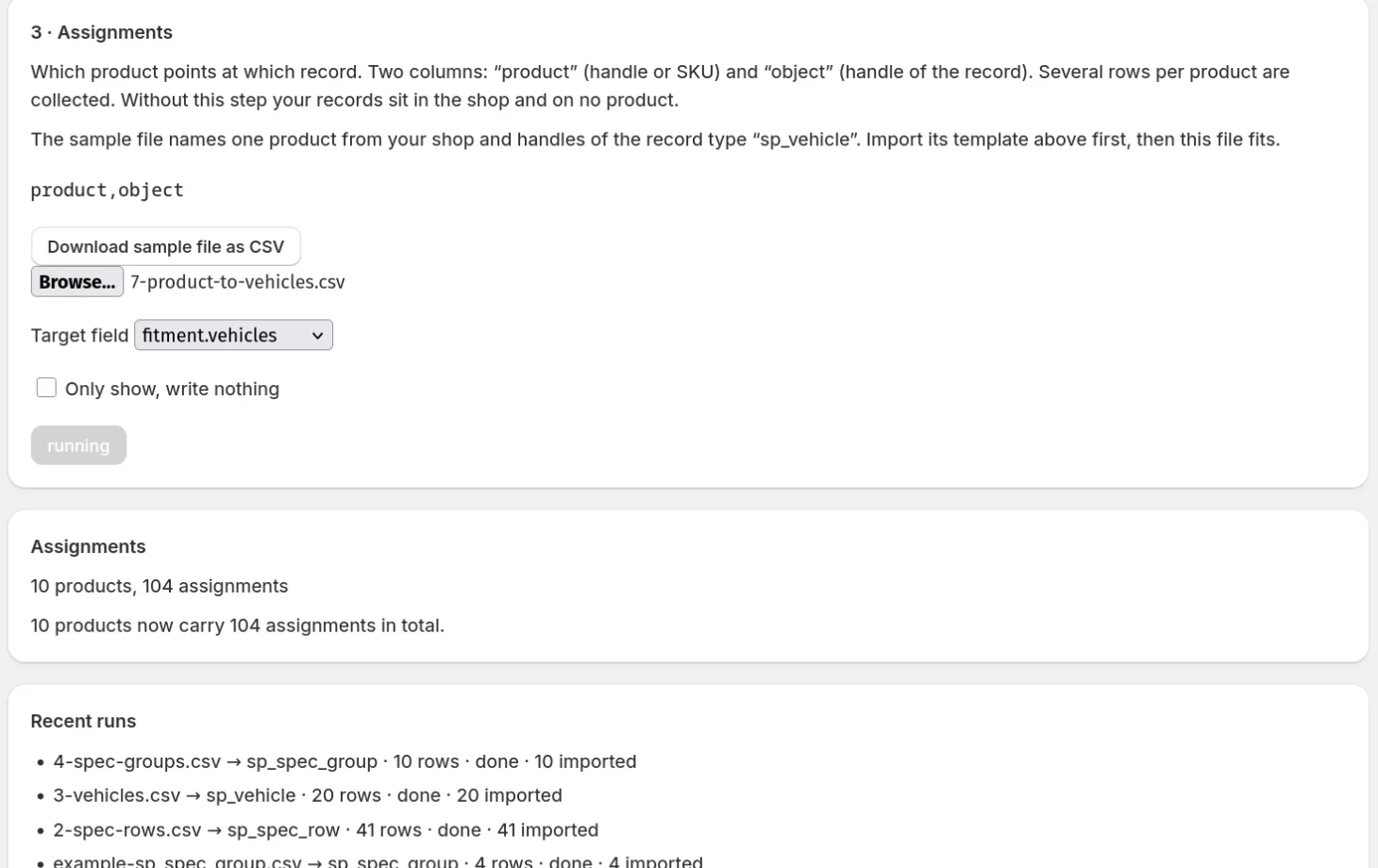
Choose the target field, pick the file, untick the dry run once the numbers look right, Read assignments. Repeat for each field: groups, compatibility, documents.
10 products now carry 104 assignments in total
Watch out: The target field starts on the first entry. Check it before every file.
07Check it in your Shopify admin
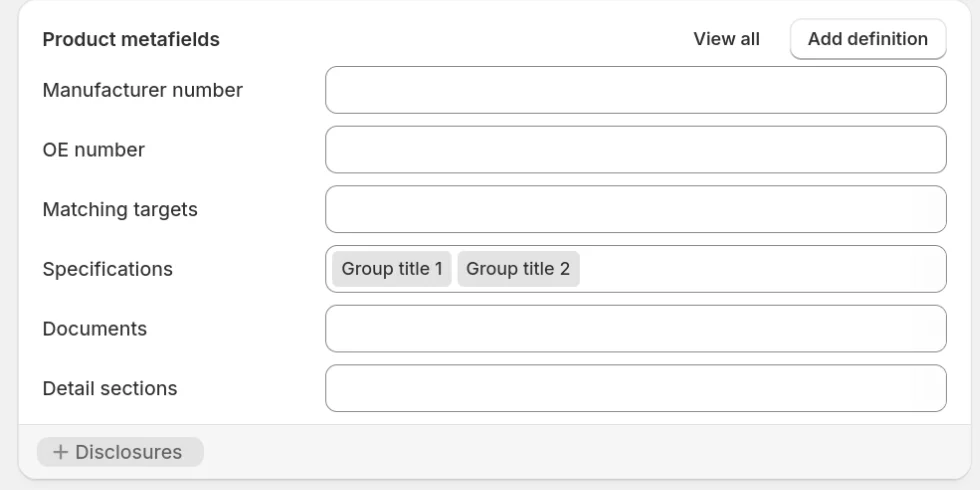
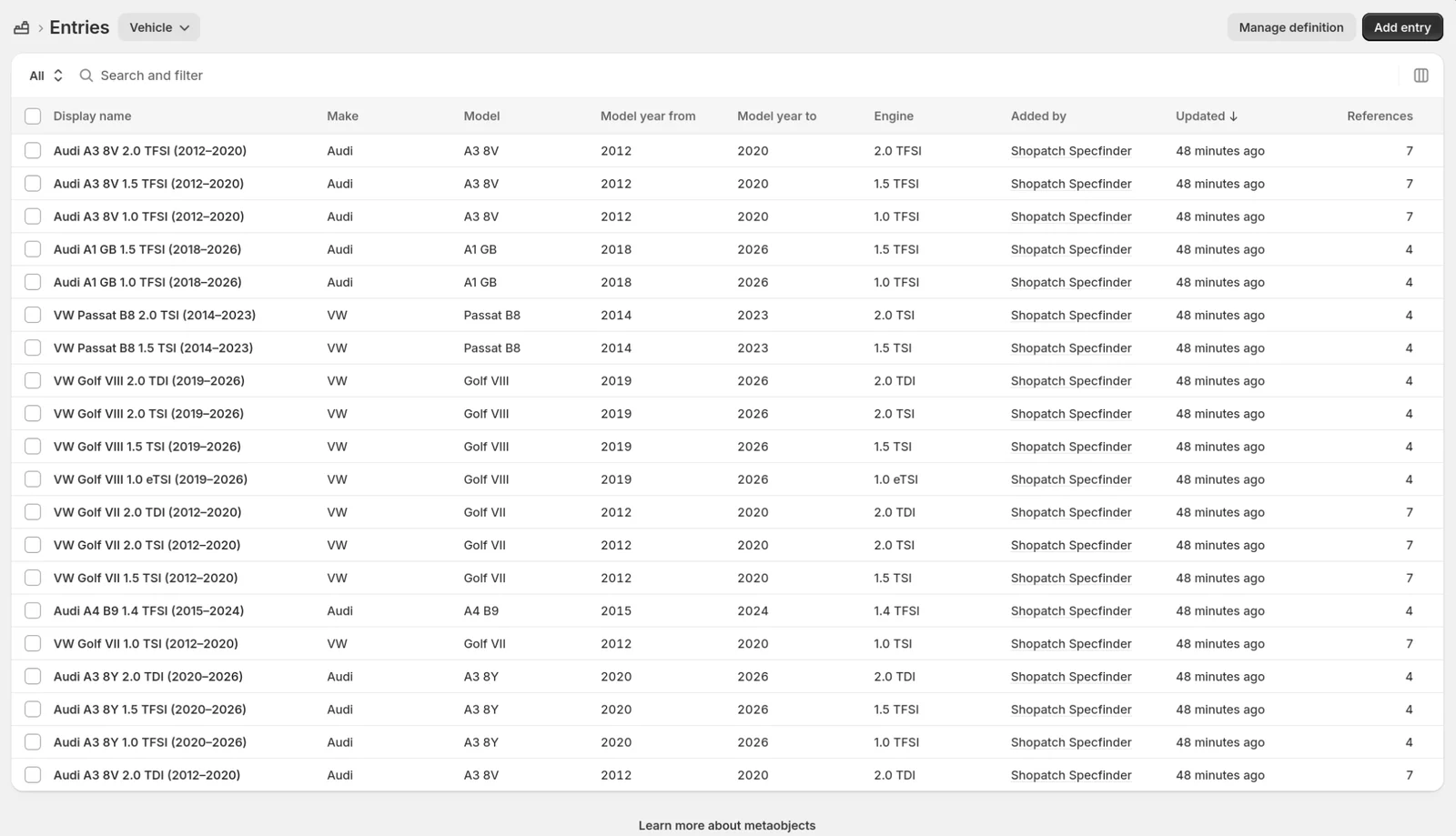
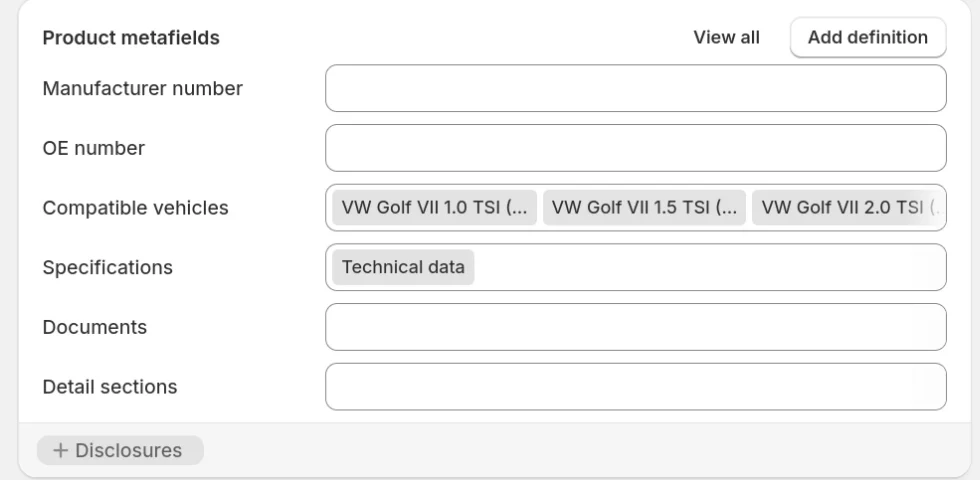
Content → Metaobjects → open a record type to see its entries. Products → a product → Product metafields shows what is attached to it.
Metaobject entries: 20 vehicles with make, model, years and engineProduct metafields: Compatible vehicles and Specifications filled
Watch out: After a bulk import, the Entries column on the Metaobjects overview can trail behind for hours. Open the record type to see the real list.
08Derive the filters
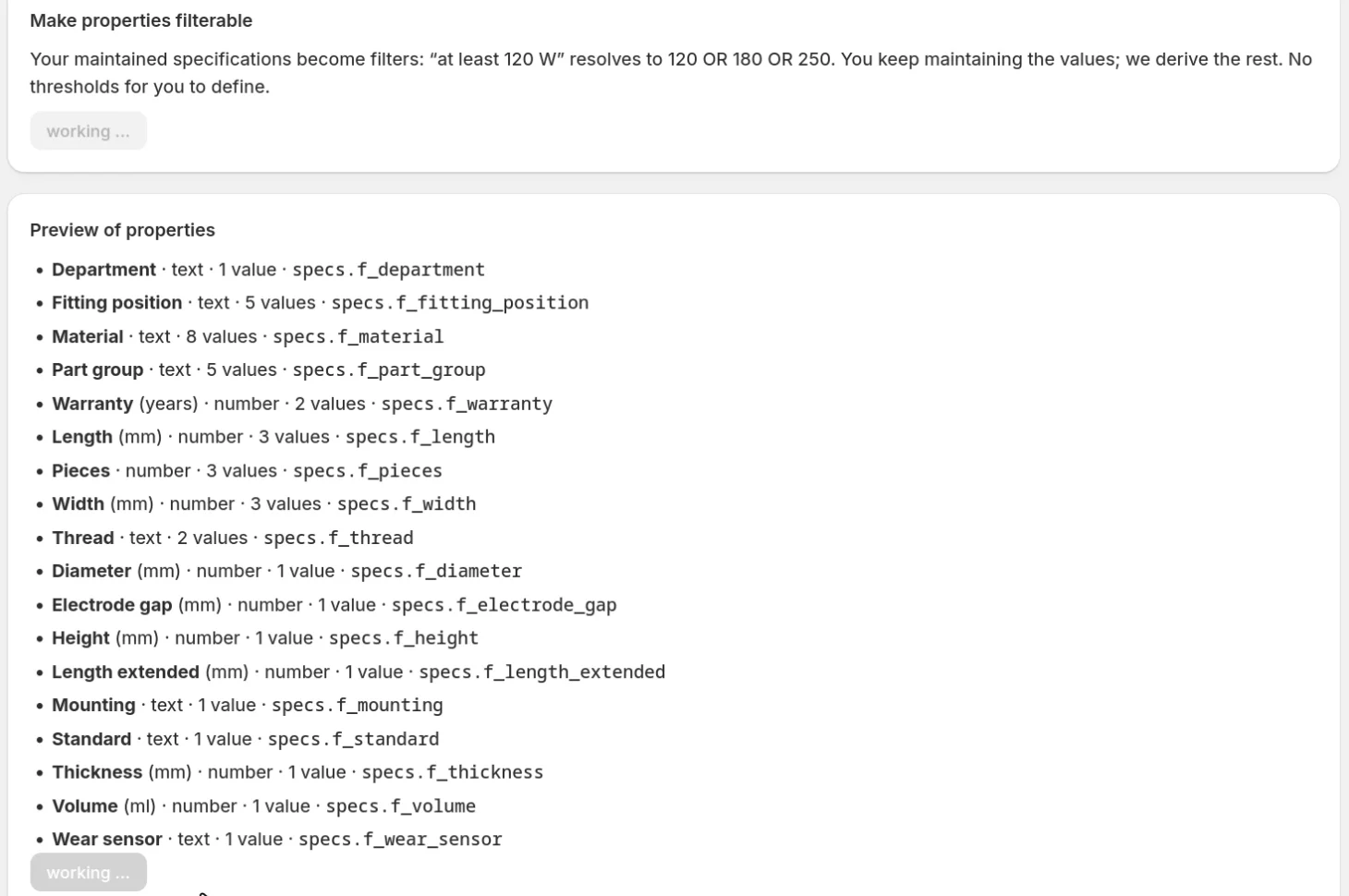
Filters → Make properties filterable → Preview → Create filters. Every row label becomes a filterable field on the product; numbers become ranges, so “at least 120 W” finds 120, 180 and 250. You set no thresholds.
Exclusion filters: pick a property with few, recurring values, such as Material or Contains, then Preview and create. Shopify cannot filter for what a product does not contain; the app derives a “without …” field from what it does contain.
When products change later, the Filters page and Getting started say how many properties are affected, and one click derives them again. The app also sends you an email, at most once a day, while something is out of date.
An exclusion you no longer need is removed under Remove exclusions on the same page: Preview shows what disappears, then the derived field and its values go. Your specifications are not touched.
Preview of properties: name, type, number of values and key18 definitions, 70 values writtenPreview for Material: without Activated carbon, without Cast iron and six more
Watch out: The compatibility data for the picker is stored automatically after an import; the Filters page confirms it with the number of entries.
09Add the filters in Search & Discovery
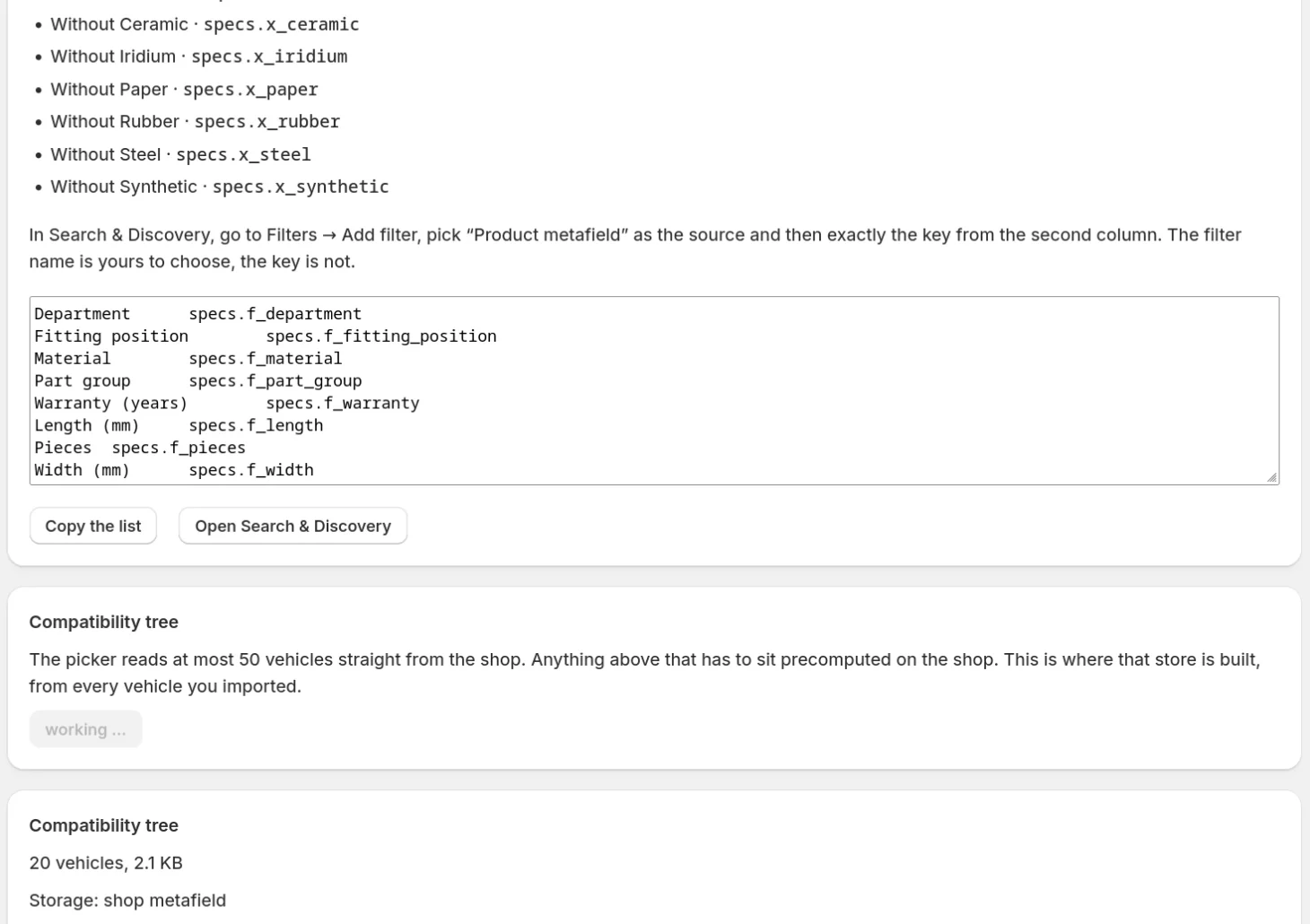
Storefront filters live in Shopify's free Search & Discovery app, and no app can create them there. The Filters page lists every derived property that has no filter yet, with name and key, a list to copy and a button that opens Search & Discovery.
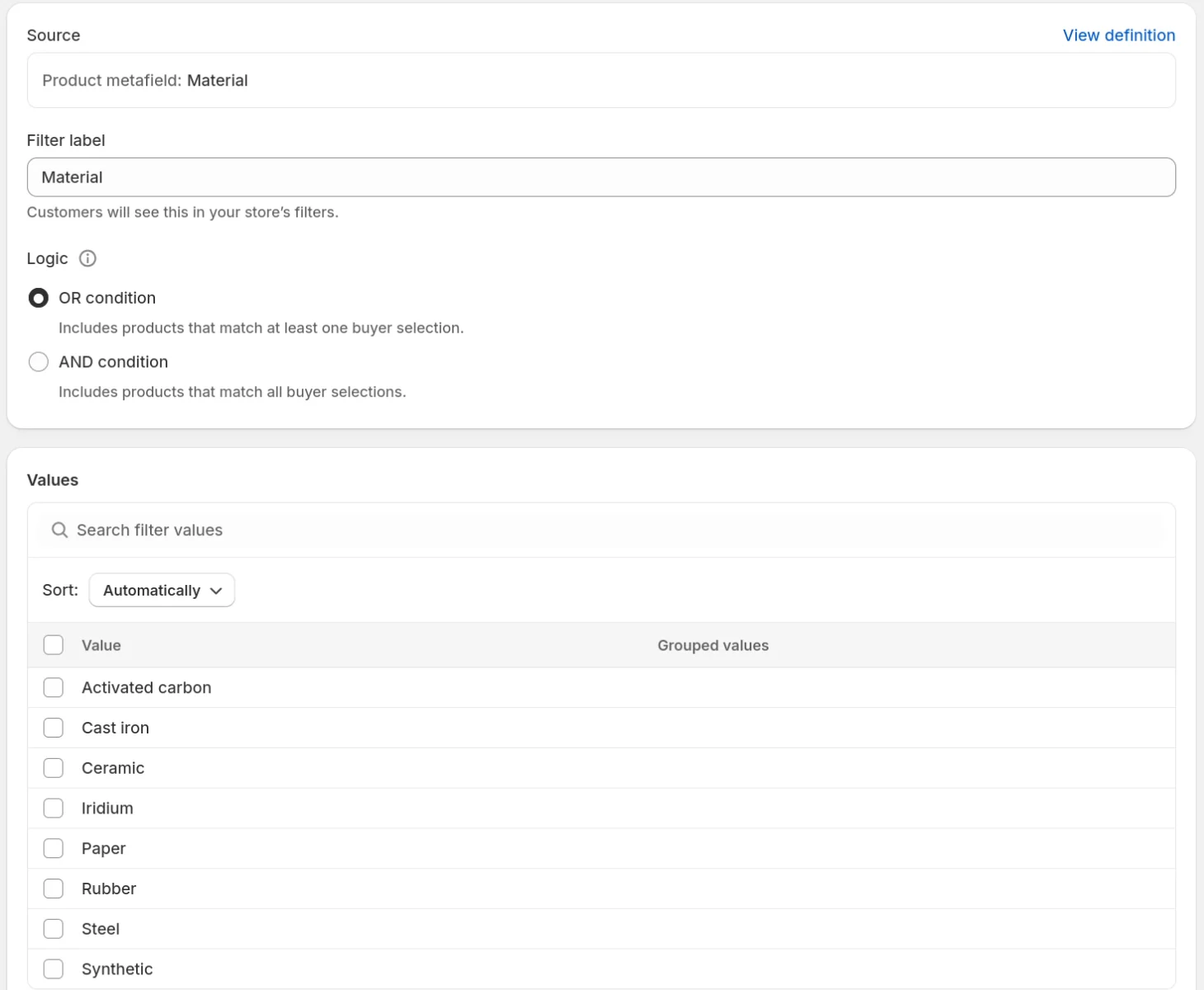
In Search & Discovery: Filters → Add filter → source Product metafield → the key from the list → Save. The filter label is yours to choose, the key is not. Add one filter per property you want customers to use.
The missing filters with keys, Copy the list and Open Search & DiscoverySearch & Discovery: filter Material with the source Product metafield
Watch out: While your storefront is password protected, the app cannot see which filters arrive and says so rather than guess.
10Place the blocks
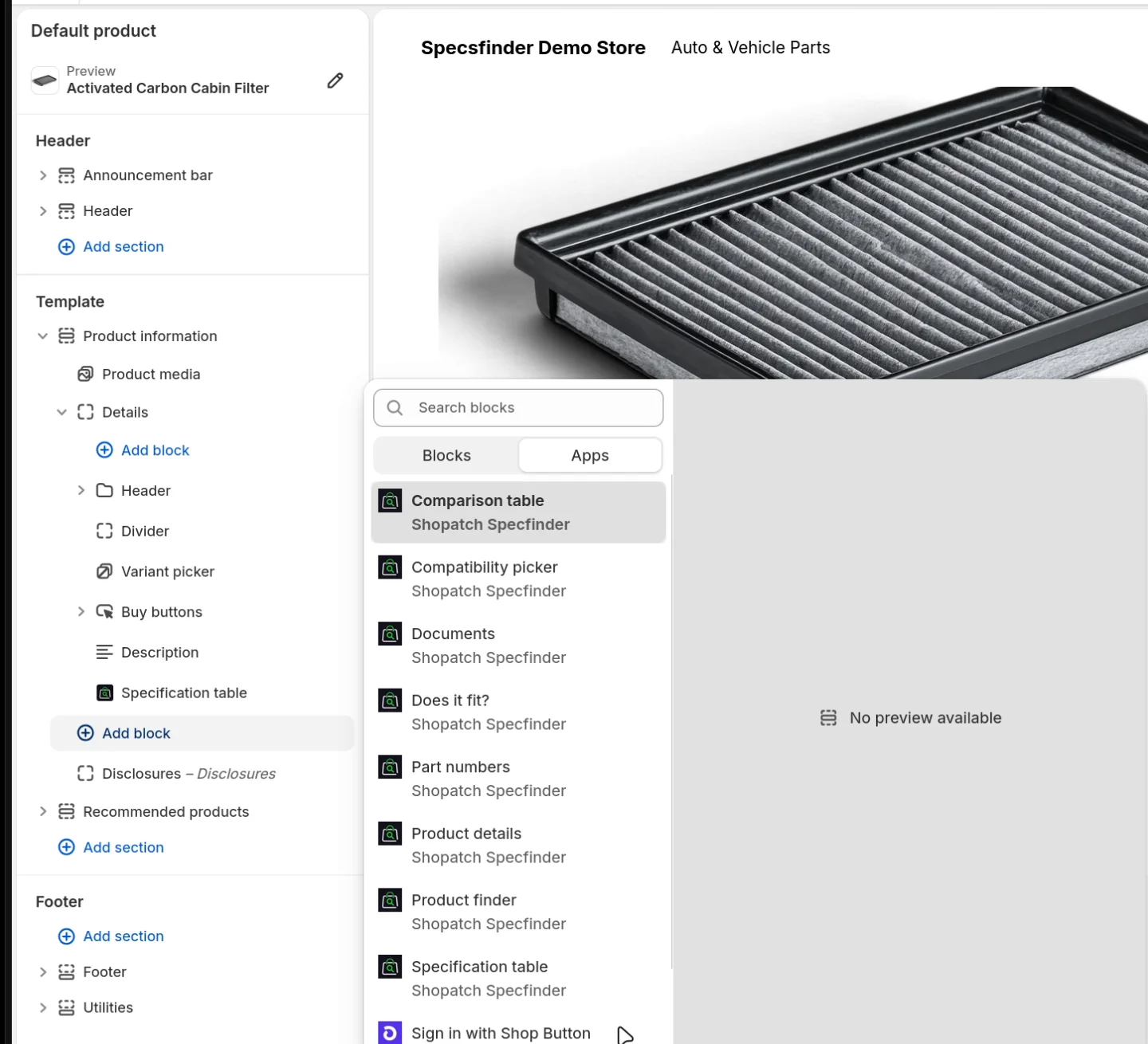
Getting started → Add the block opens the theme editor with the specification table already on your product page. More blocks are under Add block → Apps. Save when you are done. Every block and its settings are described below.
For compatibility, place the Compatibility picker above Does it fit?: the answer needs a chosen vehicle or device.
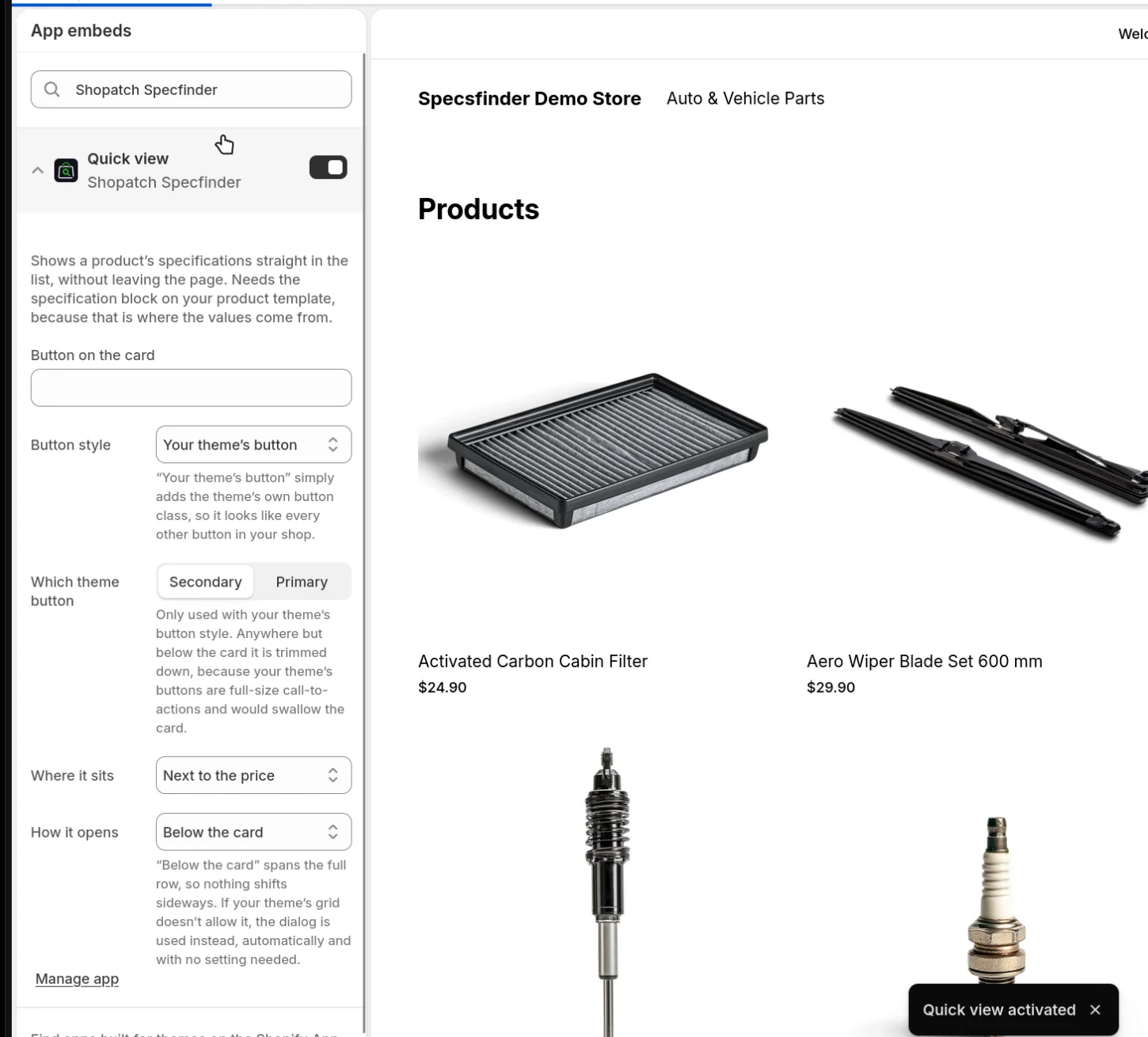
Quick view is an app embed for the whole theme, not a block. Turn on Quick view opens its switch; save.
Theme editor: Add block → Apps with every Shopatch Specfinder blockApp embeds: Quick view switched on
11Check your storefront
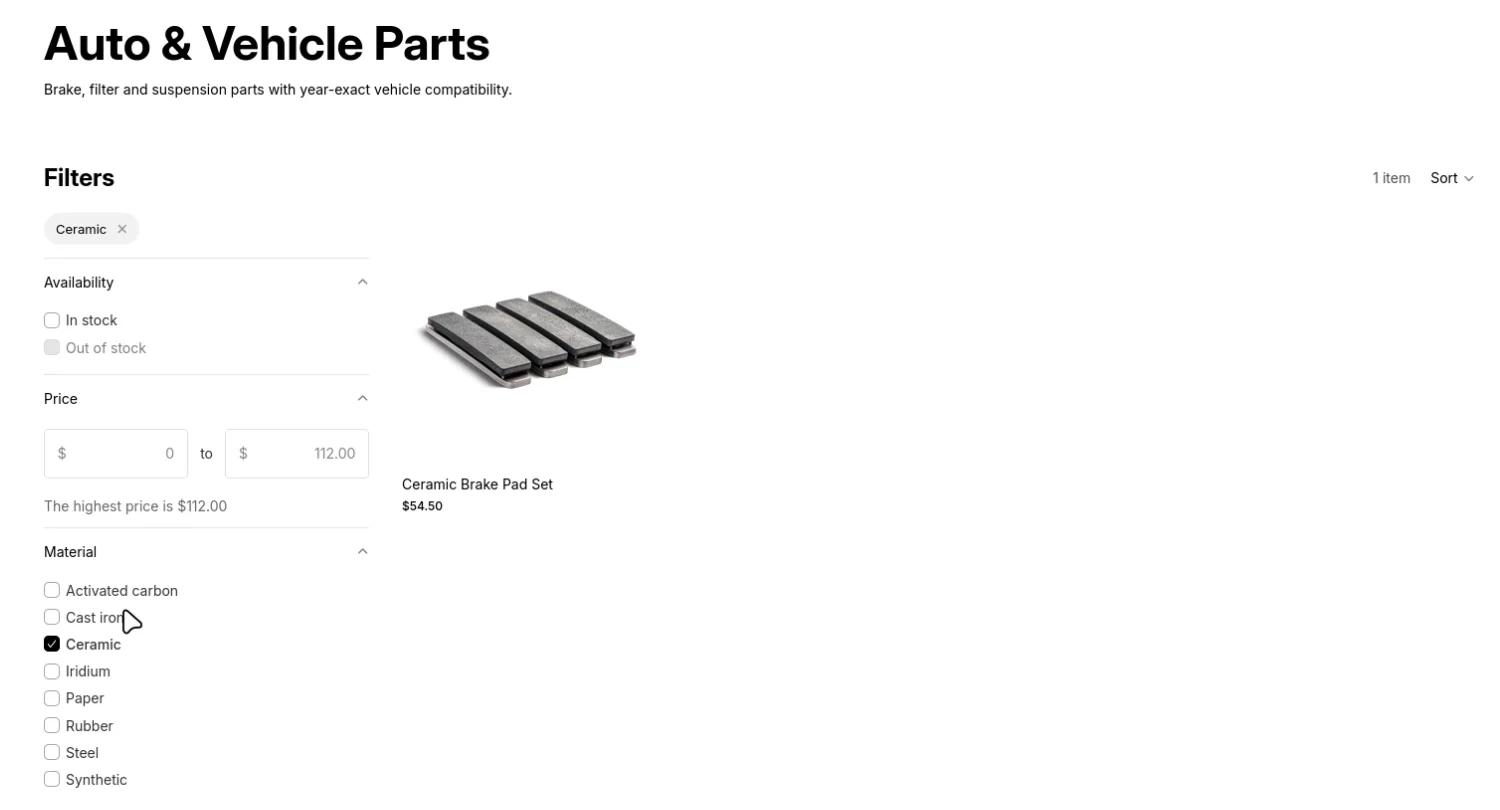
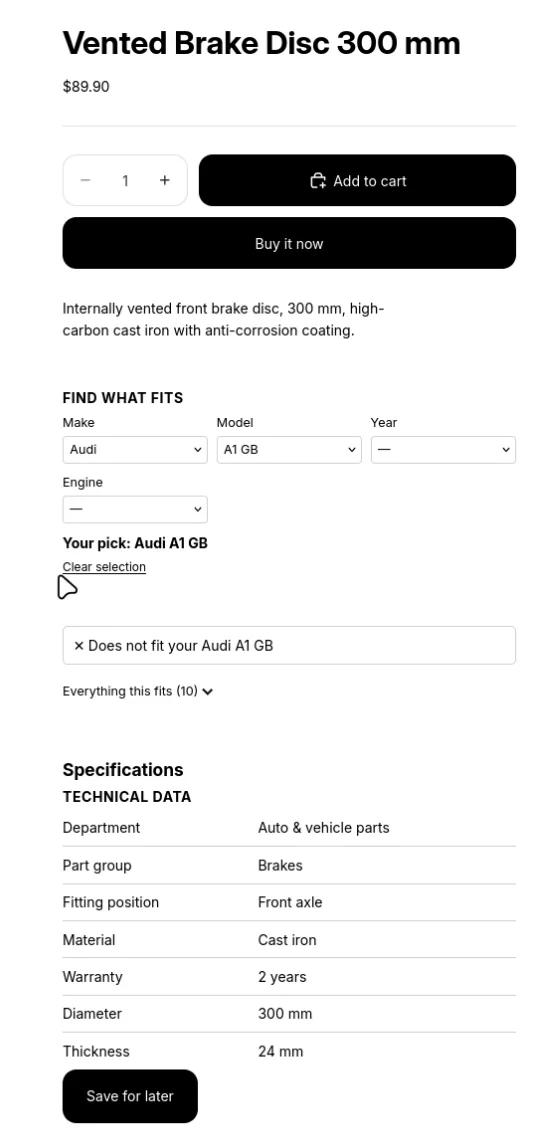
The filters from Search & Discovery appear in your collections, Quick view opens from the product cards, and on the product page the customer picks a vehicle and gets a straight answer.
Collection filtered by Material: Ceramic, one productFits your VW Golf VII 2017 2.0 TDIDoes not fit your Audi A1 GB
12Translate (optional)
Add a language under Settings → Languages. Filters → Open Localization leads to Shopify's Translate & Adapt: filter labels, record values and everything you typed into the blocks translate like any other shop content.
Fields you leave empty in a block need no translation: the block shows its own text in the language the customer is reading.
Translate & Adapt: the filter Material translated to German as Werkstoff
How the data fits together
Specfinder stores your data as Shopify metaobjects and product metafields. That sounds technical, but the idea is simple: small records that point at each other, and a product that points at the records that describe it.
Section 1 createsSection 2 linksSection 3 attachesText fields on the product: OE number, manufacturer number
A specification row is one line of the table: label, value, unit, such as “Diameter · 300 · mm”. Rows are grouped into a specification group, such as “Dimensions”. The product points at its groups. That is why the order matters: the rows must exist before a group can list them, and the groups must exist before a product can point at them.
A compatibility target is one thing a product fits: a vehicle, a printer, a device. The product points at every target it fits. The compatibility picker and “Does it fit?” read exactly these links.
A document is a data sheet, a declaration or a manual, as an uploaded file or a link. The product points at its documents.
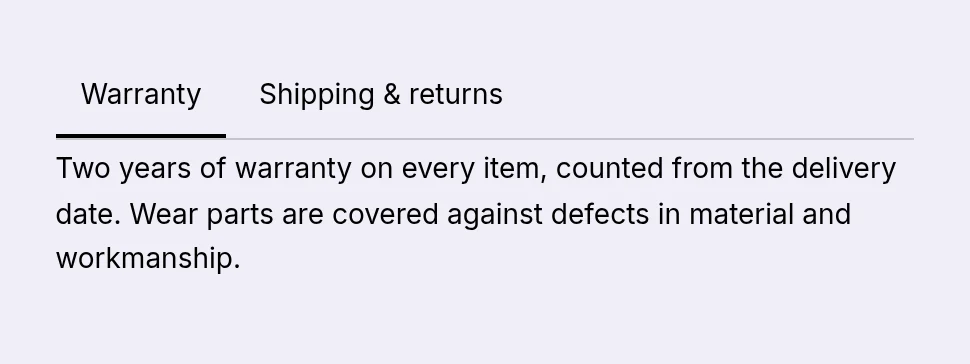
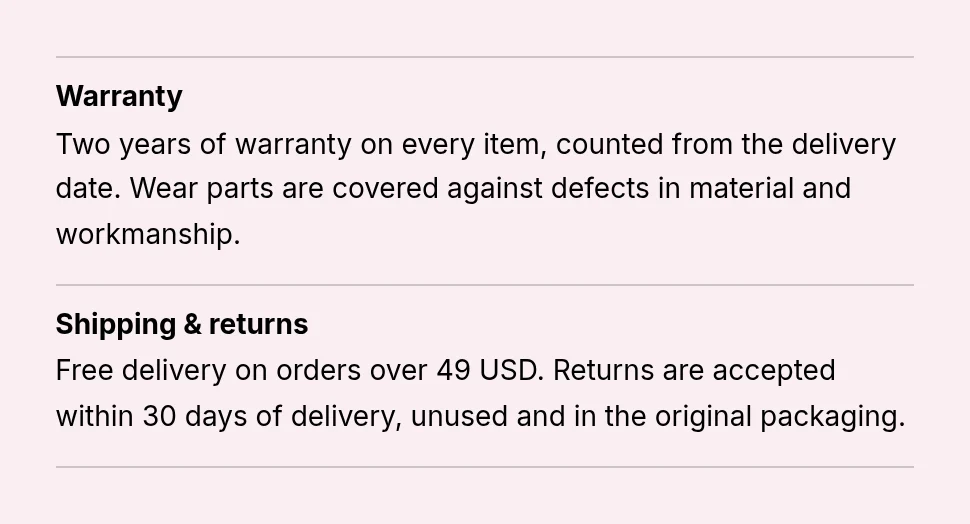
Detail sections are the headings of text blocks such as Warranty or Shipping & returns, with an optional text that applies to every product. A product detail is the text of one section for one product. The product points at its product details. The starter pack creates the sections for you.
Part numbers (OE number and manufacturer number) are plain text fields on the product. SKU and barcode come from the product's variant, as in any Shopify shop.
Why the order matters
Records first (import section 1): rows, groups, compatibility targets, documents. Nothing can point at a record that does not exist yet.
Then links between records (import section 2): which rows belong to which group. Skip this and a product shows an empty specification table.
Then links to products (import section 3): which groups, targets and documents belong to which product. Only now does anything appear in your shop.
Then the filters (step 8), because they are derived from the values the products now carry.
The record types
Six record types, created in step 3. Four of them come from a CSV file in import section 1. The other two are text blocks and are maintained in your admin. The column names in a file are the field keys in the first column below, written exactly like this, in lower case.
Specification row sp_spec_row
What it is
One line of the specification table: a label, a value and a unit. Kept as its own record so the finder can filter on it and the comparison can line rows up across products.
Used by
Specification table, Product finder, Comparison table, Quick view, and the derived filters.
Display name
Created automatically as “Diameter: 300 mm”.
How to fill it
CSV, import section 1, record type Specification row.
Your own ID for the group, for example sp-grp-brake-disc-300-dimensions.
label
required
text
The heading shown above the rows, such as Dimensions & fitting.
rows
optional
links to rows
Leave this column out. The rows of a group are linked in import section 2 (record,object).
Compatibility target sp_vehicle
What it is
One thing a product fits: a vehicle, a printer, a device. Renamed in step 5 to the word of your trade (Vehicle, Printer, Device). Only the labels change; the keys stay the same in every trade.
Used by
Compatibility picker, Does it fit?
Display name
Created automatically, for example “VW Golf VII 2.0 TDI (2012–2020)”.
How to fill it
CSV, import section 1, record type Vehicle (or the name you chose in step 5).
What the customer reads, such as Operating instructions.
url
optional
full address
A link instead of a file, starting with https://. The easiest way to bring documents in by CSV.
file
optional
Shopify file ID
An uploaded file. In a CSV it needs the file's ID (gid://shopify/GenericFile/…); simpler to attach the file in your admin (Content → Metaobjects → Document).
kind
optional
text
The type of document, such as Declaration of conformity. Shown next to the title.
language
optional
text
Language code such as en or de. Shown next to the title.
issued
optional
date, YYYY-MM-DD
The issue date, such as 2025-09-12. The block can show it.
version
optional
text
Such as 2.0.
Detail section sp_slot
What it is
The heading of a text block in the Product details block, such as Warranty or Shipping & returns, with an optional text that applies to every product.
Used by
Product details.
Display name
The label.
How to fill it
The starter pack creates them (step 5). Edit or add more in your admin under Content → Metaobjects → Detail section. Rich text cannot come from a CSV.
Field (column)
Required
Format
Notes
label
required
text
The heading, such as Warranty.
body
optional
rich text
Shop-wide text. A product with its own text for this section overrides it.
Product detail sp_detail
What it is
The text of one detail section for one product, such as this product's warranty terms.
Used by
Product details.
Display name
Section and product.
How to fill it
In your admin: Content → Metaobjects → Product detail, then attach it to the product in the Product metafields card (field Detail sections). Most shops only need the shop-wide texts.
Field (column)
Required
Format
Notes
slot
required
link to a detail section
Which section this text belongs to.
body
optional
rich text
The text for this product.
The product fields
Step 3 also creates these fields. The product fields are pinned, so they appear on every product in your admin under Product metafields.
The filters derived in step 8 add more fields under specs (f_… for properties, x_… for exclusions). They are written by the app; you never fill them yourself.
The three import sections
The import page has one section per kind of file. The header row of your file decides which section it belongs to; the app reads it as soon as you pick the file and tells you if it belongs somewhere else.
Section 1: the records themselves
handle,label,value,unit (and so on)
One row per record. The first column is always handle; the other columns are the field keys of the chosen record type. You choose the record type in the list above the file field, and the Template box below shows the exact columns with two example rows.
The record type goes back to the first entry of the list after every import. Choose it again before the next file.
Import is repeatable. A handle that already exists is updated, a new handle is created.
An empty cell leaves the stored value as it is. To clear a value, edit the record in your admin.
A column the record type does not know is skipped and named after the import. If none of the columns match, nothing is written and the app names the record type the file belongs to.
A repeated handle or an empty handle stops the import with the row number.
Large files run as a Shopify bulk operation. The line under Recent runs updates itself until it says done, and it shows how many rows were imported and how many failed.
Section 2: links between records
record,object
One row per link. record is the handle of the record that points, object the handle of the record it points at. Choose the target field in the list: sp_spec_group.rows links groups to their rows, sp_detail.slot links a product detail to its section.
A record that appears in the file gets exactly the links listed in the file. To add one row to a group, the file must list all rows of that group. Records that do not appear stay as they are.
Several rows for the same record are collected; the order in the file is the order in the table.
“Only show, write nothing” is ticked by default. Read the numbers of the dry run, then untick it and send the same file again.
Handles that do not exist yet are named (“… not found and skipped”). Import them in section 1 first.
Section 3: the assignment to your products
product,object
One row per link. product is the product's handle or the SKU of one of its variants, object the handle of a record. Choose the target field: specs.groups, fitment.vehicles, details.documents or details.slots. The list starts on the first entry, so check it before every file.
A product that appears in the file gets exactly the records listed in the file for this field. To add one vehicle to a product, the file must list all of its vehicles. Products that do not appear stay as they are.
The dry run works as in section 2.
Unknown products and unknown records are named, never skipped silently.
Only after this step does anything show in your shop.
CSV format
The app reads what Excel, Numbers, LibreOffice and Google Sheets write. These are the rules it applies.
Encoding
UTF-8. A byte order mark at the start is fine; the sample files have one so Excel opens umlauts and accents correctly.
Separator
Comma or semicolon. The app detects it from the header row, so German Excel files work as they are.
Header row
The first line holds the column names, exactly as listed above: lower case, no spaces. For sections 2 and 3 the German names produkt, datensatz and objekt are accepted too.
Quotes
A value containing a comma, a semicolon or a line break must be in double quotes. A quote inside is doubled. Spreadsheet programs do this for you.
Empty lines
Skipped.
Numbers
year_from and year_to are whole numbers. In specification rows, write the value without its unit; decimals use a point (1.4).
Dates
YYYY-MM-DD, for example 2025-09-12.
Links
Full addresses starting with https://.
Handles
Unique within a file, never empty. Lower case letters, digits and hyphens are the safe choice. Keep them stable: they are how a second import finds the same record again.
Products in section 3
The product handle (the last part of the product's address) or a variant SKU.
Size
Section 1 files of several thousand rows are fine, they run as a bulk operation. Sections 2 and 3 look up up to 10,000 records per record type.
Sample files
Every file on this page has been read with the app's own parser and passes its checks: known columns, required fields filled, unique handles, and every link in sections 2 and 3 points at a handle from section 1. The file names start with the import section they belong to.
One template per kind of upload
Small files that show the format of each upload with two or three rows.
The full data of ten products per trade from our demo shop Broadstock, the same data you see in the storefront screenshots. The sets are in the tab for your trade. ↑
Watch out: The product handles in section 3 files are Broadstock's. In your shop, replace them with your own handles or SKUs, otherwise the app reports them as not found.
The theme blocks
Eight blocks and one app embed. All of them are added in the theme editor under Add block → Apps, and each reads the fields described above. Every setting is listed with its options; the defaults are marked.
Specification table
What it shows
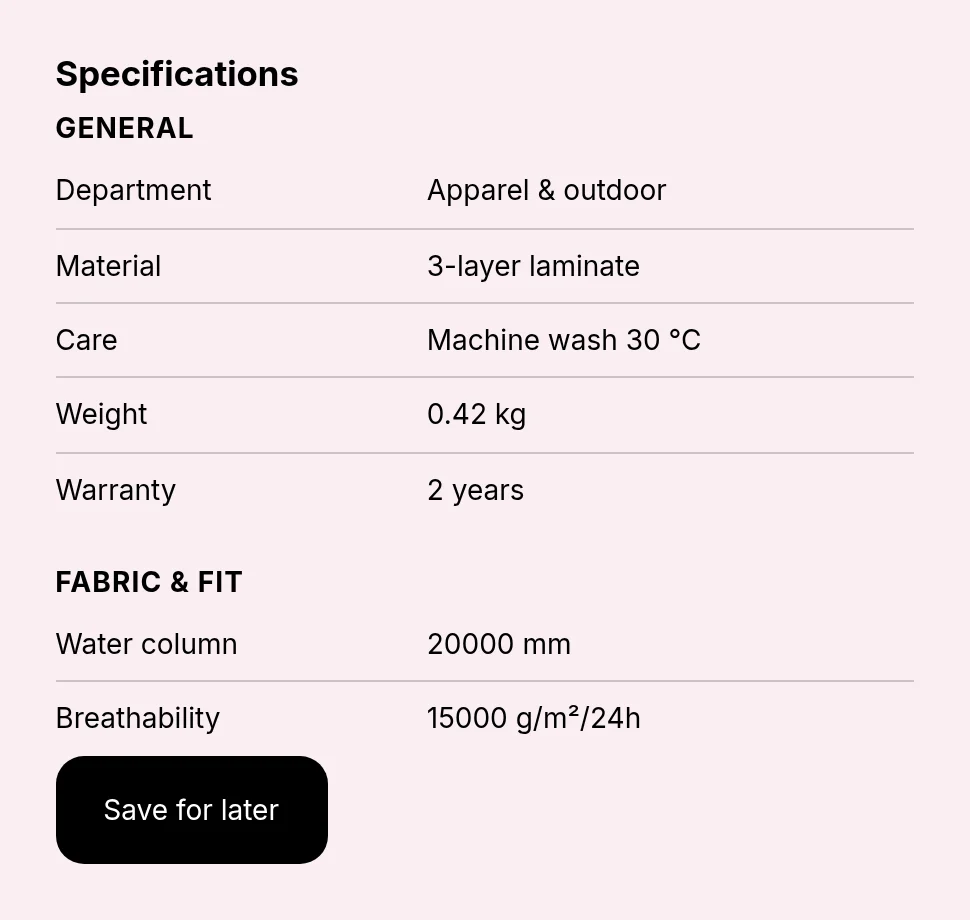
The specification table of the product: its groups with their rows, and optionally a “Save for later” button for the comparison.
Where it goes
Product pages.
What it needs
specs.groups filled on the product (import sections 1 to 3).
Specification table with two groupsThe same block with collapsible groups
Settings
Setting
Options
What it does
Heading
free text
Heading level
H2 (default) · H3
Part of the document outline, not decoration. If the section around this block already has a heading, pick H3: two H2s in a row are an outline error, and only a screen reader shows it.
Source
free text (default: specs.groups)
Where the specifications live, as namespace.key. Leave it as it is unless you keep them somewhere else.
Show units
on / off (default: on)
Row order
As maintained (default) · Alphabetical
“As maintained” keeps the order you gave the rows, usually the meaningful one.
Groups
Show group titles
on / off (default: on)
Groups can be collapsed
on / off (default: off)
Worth it from about six groups on. Works without JavaScript, and everything stays reachable by keyboard.
Open the first group
on / off (default: on)
Presentation
Density
Regular (default) · Compact
When there is no data
Hide the block (default) · Keep the space
Hiding is the default: an empty box in a finished shop looks like a fault, a missing block is at most a gap.
Comparison table
Show “Save for later” button
on / off (default: on)
Adds the product to a comparison the customer can open elsewhere.
Button alignment
Left (default) · Centred · Right · Full width
Comparison page
address
Where the “View comparison” link goes. Without it the link stays hidden, because a link to nowhere is worse than none.
Product details
What it shows
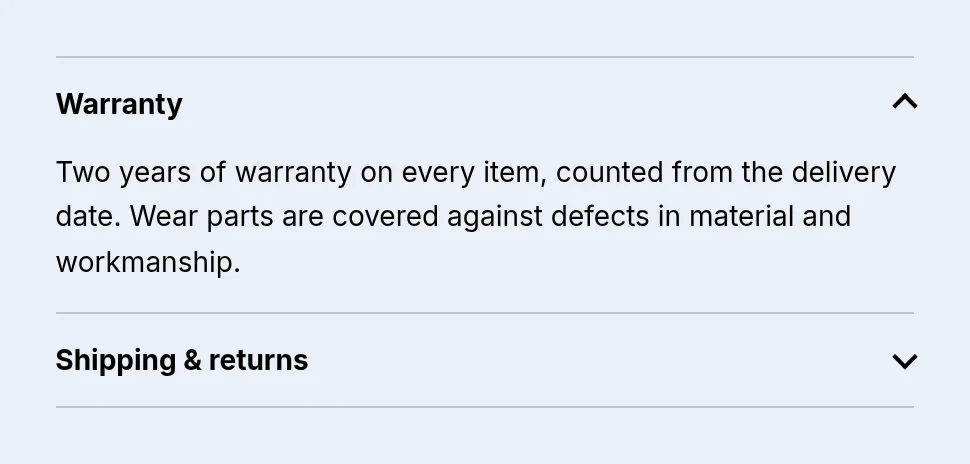
The detail sections of the product, such as Warranty and Shipping & returns, as accordion, tabs or open list. Shop-wide texts fill in where a product has none of its own.
Where it goes
Product pages.
What it needs
Detail sections from the starter pack; optionally product details in details.slots.
Product details as accordionAs tabsAs open list
Settings
Setting
Options
What it does
Heading
free text
Heading level
H2 (default) · H3
Part of the document outline, not decoration. If the section around this block already has a heading, pick H3: two H2s in a row are an outline error, and only a screen reader shows it.
Layout
Accordion (default) · Tabs · Open list
Open the first section
on / off (default: on)
Applies to the first section that actually has content. It never stays shut just because a section is empty on this product.
Fall back to shop-wide text
on / off (default: on)
Sections like Returns or Warranty read the same on every product. Write them once on the section itself; a product with its own text still wins.
Documents
What it shows
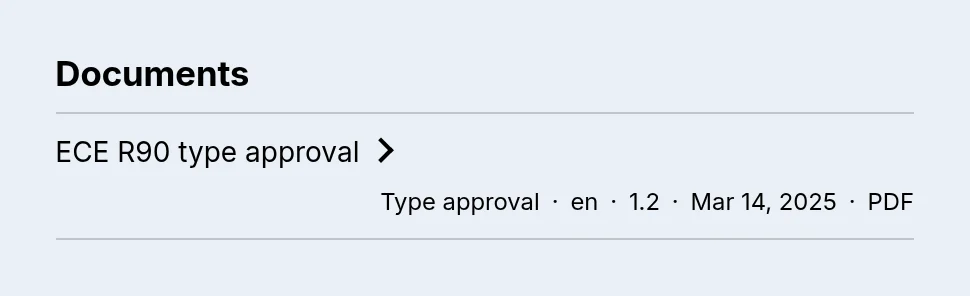
The product's documents with title, kind, language, version, date and file type. PDFs open in a new tab, images in a dialog.
Where it goes
Product pages.
What it needs
details.documents filled on the product.
Two documentsOne type approval
Settings
Setting
Options
What it does
Heading
free text
Heading level
H2 (default) · H3
Part of the document outline, not decoration. If the section around this block already has a heading, pick H3: two H2s in a row are an outline error, and only a screen reader shows it.
Metafield
free text (default: details.documents)
Where the documents live, as namespace.key, for example details.documents. The block works out the shape behind it on its own. If the links show file names instead of names: give the file an alt text under Content → Files and it becomes the label. The shop takes a few minutes to pick it up while the theme editor shows it right away, so do not look too early.
Show the issue date
on / off (default: on)
Open images in a dialog
on / off (default: on)
An image in a new tab sits on a grey background and looks like a fault. PDFs and links to elsewhere still open in a new tab. There the browser does more than we could rebuild.
Part numbers
What it shows
SKU, manufacturer number, OE number and barcode, each with a copy button if you like. Labels can be renamed per trade.
Where it goes
Product pages.
What it needs
SKU and barcode from the variant; partno.mpn and partno.oem on the product.
One per row with copy buttonsCompact with copy icons
Settings
Setting
Options
What it does
Heading
free text
Heading level
H2 · H3 (default)
Part of the document outline, not decoration. If the section around this block already has a heading, pick H3: two H2s in a row are an outline error, and only a screen reader shows it.
Fields
Leave a label empty and the standard wording is used. Overriding is how one block serves many trades: “OEM” is “Manufacturer number” for printers and “Order number” in spare parts.
Show SKU
on / off (default: on)
Label for SKU
free text
Show MPN
on / off (default: on)
Label for MPN
free text
Show OEM
on / off (default: on)
Label for OEM
free text
Show barcode (EAN/UPC)
on / off (default: off)
Label for barcode
free text
Presentation
Layout
One per row (default) · Compact
“Compact” puts label and number on one line. Good for a single number, cramped for four.
Show copy buttons
on / off (default: on)
Copy button style
Label (default) · Icon
As an icon they sit more quietly next to long lists of numbers.
Does it fit?
What it shows
Answers whether this product fits what the customer picked, and lists everything it fits.
Where it goes
Product pages, below the Compatibility picker.
What it needs
fitment.vehicles filled on the product, and a Compatibility picker on the same page or earlier in the visit.
Before a pick: Pick yours aboveFits your VW Golf VII 2017 2.0 TDI
Settings
Setting
Options
What it does
Answers whether this product fits what the customer picked. The two sentences are yours to write, and that is what makes one block serve vehicles, printers and power tools alike.
When it fits
free text
Write {ziel} where the customer’s pick should appear. Leave it out and the pick is appended.
When it does not fit
free text
Write {ziel} where the customer’s pick should appear. Leave it out and the pick is appended.
Before the customer has picked
Say something anyway
on / off (default: on)
An empty spot looks like a fault. A short invitation to pick usually reads better than silence.
Text before a pick
free text
Presentation
Style
Line of text (default) · Badge
Show everything this fits
on / off (default: on)
List starts open
on / off (default: off)
Good for a short list. With many entries an open list pushes everything below it off the screen, and the count in the line above already answers most of the question.
Longest list
5–100 (default: 25)
A truncated list always says how many are left. Without that, a customer reads “fits these 20” and concludes theirs is not among them.
Compatibility picker
What it shows
The step-by-step picker: up to four levels, the third a range such as model years. In Show fit mode it answers on the product page; in Search mode it shows the products that match.
Where it goes
Any page: product pages, collections, a landing page.
What it needs
Compatibility targets; for Search mode a collection and a Search & Discovery filter on fitment.vehicles.
Empty pickerPicker with VW Golf VII 2017 2.0 TDI
Settings
Setting
Options
What it does
Heading
free text
Levels
The picker narrows down step by step. Name the steps for what you sell: Make → Model → Year → Engine for vehicles, Brand → Series → Model for printers, Brand → Battery system → Tool for power tools. Levels 3 and 4 can be switched off below if your data has no such step.
Level 1
free text
Level 2
free text
Show level 3
on / off (default: on)
The range level: its records hold a “from” and a “to” value, like a model year, and the picker offers every step in between. Off = the picker stops after level 2.
Level 3: a range
free text
What customers read above this step. Leave it empty and it follows your shop’s language.
Show level 4
on / off (default: on)
One more level with an exact match. Off = the picker stops after level 3.
Level 4
free text
What customers read above this step. Leave it empty and it follows your shop’s language.
Behaviour
Mode
Show fit on this product (default) · Search: show matching products
“Show fit” answers whether this product fits what the customer picked. “Search” shows the products that match their pick.
Collection to search
choose a collection
Only used in Search mode. The results come from this collection, filtered to the customer’s pick. Needs a matching filter in Search & Discovery.
Button label
free text
Only used in Search mode.
Show results right here
on / off (default: on)
Keeps the customer on this page, so a new selection simply replaces the old one. Off = jump to the collection page.
Remembering the pick
Remember across pages
on / off (default: on)
Kept in the browser only, so it is functional and needs no consent banner. Turn it off for shared devices, or if you would rather store nothing at all. The picker still works, it just forgets on the next page.
Line showing the pick
free text
Write {ziel} where the customer’s pick should appear. Leave it out and the pick is appended.
Presentation
Heading level
H2 · H3 (default)
Part of the document outline, not decoration. If the section around this block already has a heading, pick H3: two H2s in a row are an outline error, and only a screen reader shows it.
Product finder
What it shows
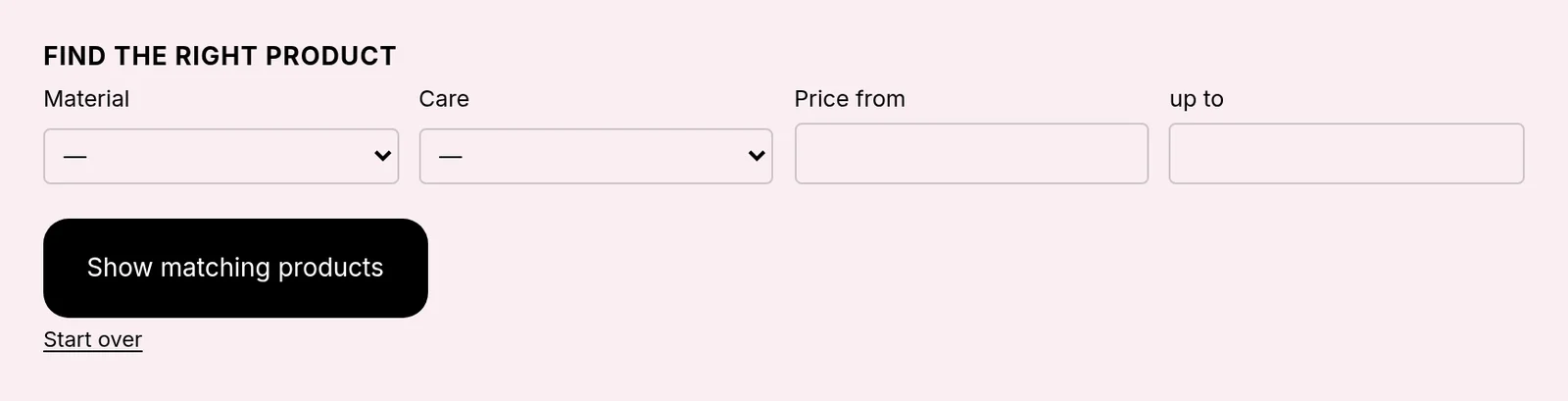
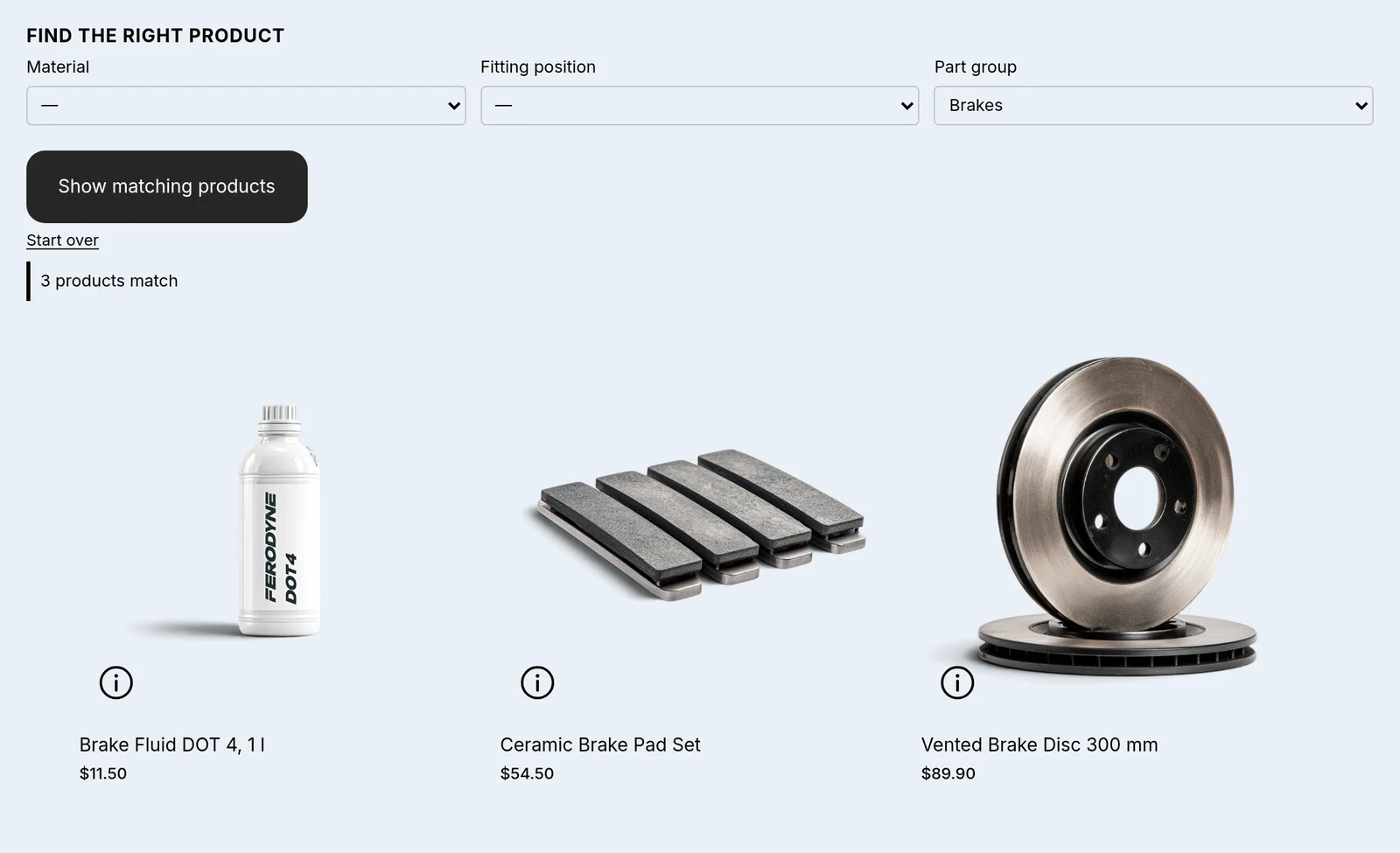
A guided search over your derived filters: one dropdown per property, number fields as “at least”, “without …” checkboxes, an optional price range, and the results right below.
Where it goes
Any page, typically a collection or a landing page per trade.
What it needs
Derived filters (step 8) and the matching filters in Search & Discovery.
The finder before a choicePart group: Brakes, 3 products match, shown right in the blockWith exclusion checkboxes
Settings
Setting
Options
What it does
Heading
free text
Heading level
H2 (default) · H3
Part of the document outline, not decoration. If the section around this block already has a heading, pick H3: two H2s in a row are an outline error, and only a screen reader shows it.
Collection to search
choose a collection
Where the results come from. Leave it empty and the finder searches the collection of the page it stands on, or all products if there is none. Needs one filter per property in Search & Discovery.
Button label
free text
Offer a price range
on / off (default: off)
Adds two number fields. Shopify filters the price itself, so this needs no index and no setup. Leave it off if your theme already shows its own price filter, otherwise it stands there twice.
Layout
Adapts to the space (default) · All fields the same width · Always one below the other
The block measures its own width, so it already stacks in a narrow column or on a phone. Pick “always” if you want the stacked shape even where there is room. A side column is possible in Horizon, which lets apps sit inside its layout groups. Dawn does not offer that place, so the block sits above or below the grid there.
Step of the price fields
number
How much the little arrows move per click. Leave it empty and the block derives it from the price range of the collection, so a shop selling at 30 gets other steps than one selling at 3000.
Show the number of matches
on / off (default: on)
Themes usually count in the results themselves. If the number then stands there twice, switch this off. Messages such as “Without Material there would be 4” stay in either case.
Show results right here
on / off (default: on)
Keeps the customer on this page, so a new selection simply replaces the old one. Off = jump to the collection page.
Numbers mean “at least”
on / off (default: on)
On: picking 120 W also shows 180 W and 250 W. Off: only the exact value.
Hide values below this many products
number (default: 2)
A value that only one product carries is not a filter, it is a link to that product. 2 hides them. 1 shows everything. Counted within the target collection, not across the whole shop. A value that every product in the collection carries is always hidden: it cannot narrow anything.
Offer exclusions
on / off (default: on)
Adds “without …” checkboxes for every exclusion you derived in the app. Off if you would rather keep them in the theme’s own filter bar only.
Show the collection right away
on / off (default: on)
On loading, the block already shows every product of its target collection; narrowing comes after. Turn it off if a product grid of your own sits below it, otherwise the same products stand there twice.
Comparison table
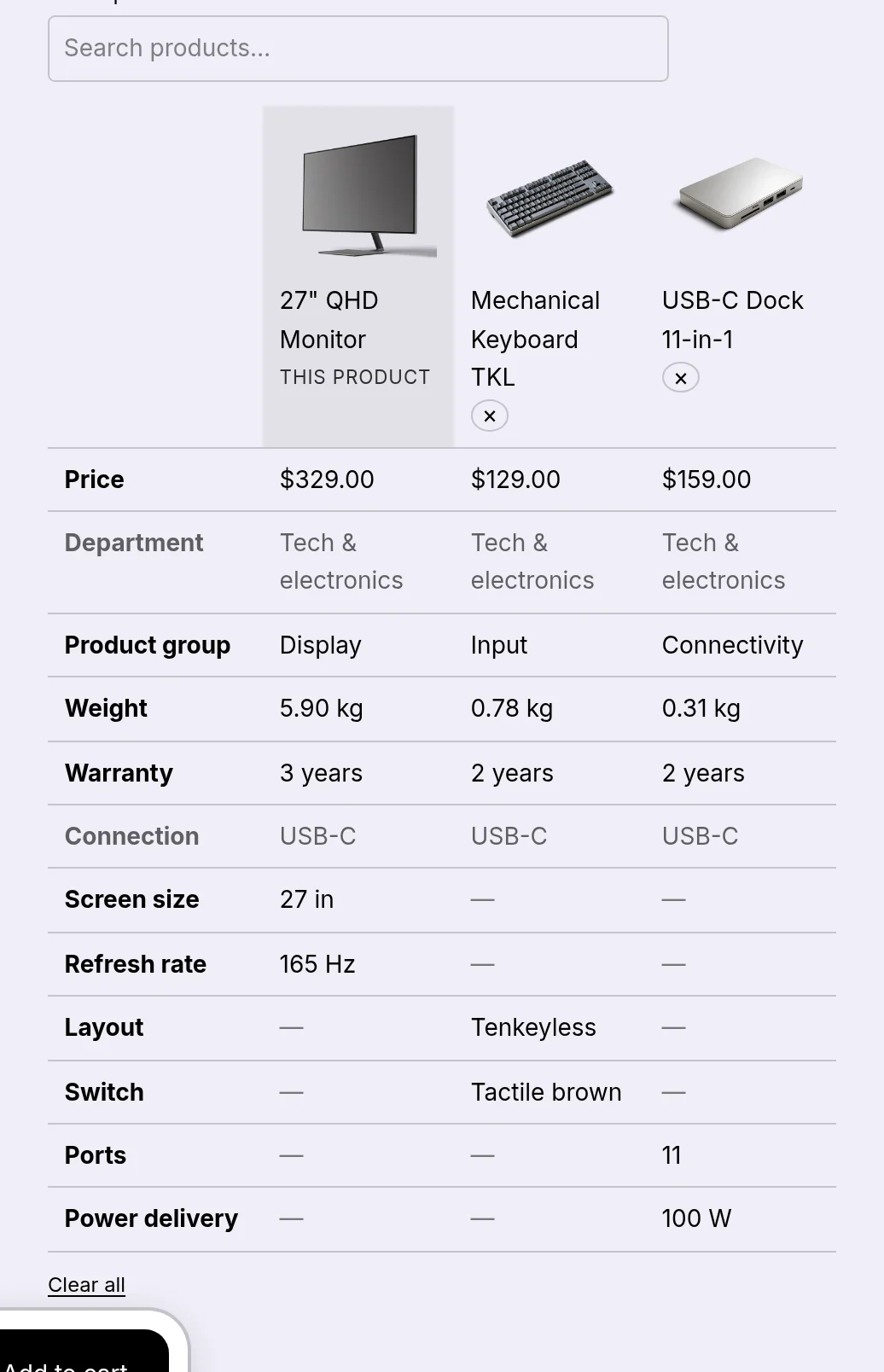
What it shows
Products side by side, row by row. Customers add products with “Save for later” in the specification table or with the search box.
Where it goes
Product pages or a comparison page of its own.
What it needs
specs.groups on the products you compare.
Three products comparedOn a page of its own, with search
Settings
Setting
Options
What it does
Heading
free text
Heading level
H2 (default) · H3
Part of the document outline, not decoration. If the section around this block already has a heading, pick H3: two H2s in a row are an outline error, and only a screen reader shows it.
Always include the current product
on / off (default: on)
On a product page, this product is always the first column. Saving another product then shows both side by side straight away.
Only show differences
on / off (default: off)
Hides rows where every product has the same value.
Let customers pick products here
on / off (default: on)
Adds a search box, so the block works on its own, without saving a product somewhere first.
Quick view
What it shows
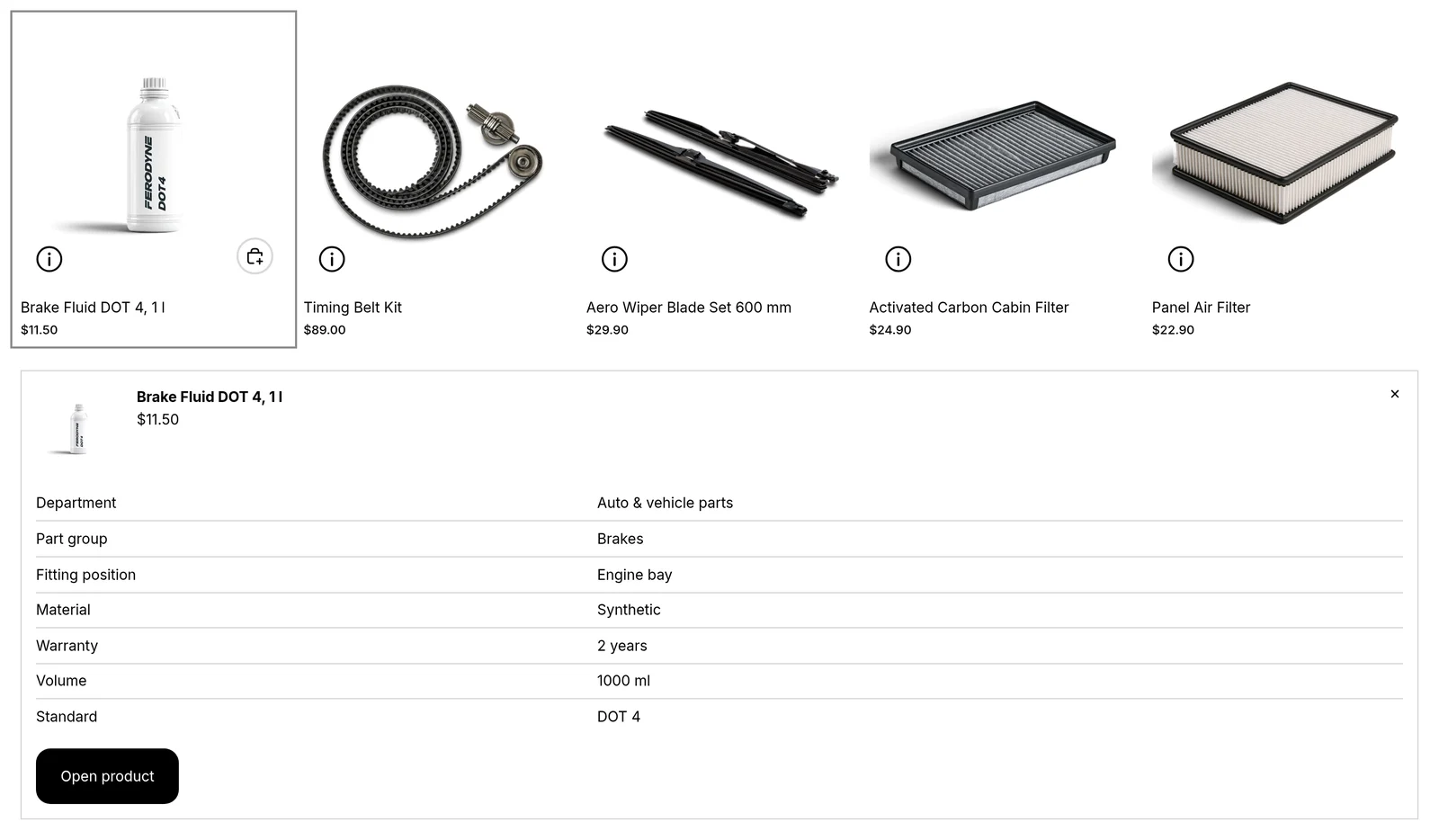
A button on every product card that opens the product's specifications right in the list, below the card or as a dialog.
Where it goes
The whole theme: App embeds in the theme editor.
What it needs
The specification table block on your product template, because that is where the values come from.
Quick view opened below a row of product cardsThe app embed with its settings
Settings
Setting
Options
What it does
Shows a product’s specifications straight in the list, without leaving the page. Needs the specification block on your product template, because that is where the values come from.
Button on the card
free text
Button style
Your theme’s button (default) · Plain outline · Small ⓘ
“Your theme’s button” simply adds the theme’s own button class, so it looks like every other button in your shop.
Which theme button
Secondary (default) · Primary
Only used with your theme’s button style. Anywhere but below the card it is trimmed down, because your theme’s buttons are full-size call-to-actions and would swallow the card.
Where it sits
On the image, top right · On the image, top left · On the image, bottom right · On the image, bottom left · Next to the price (default) · Below the card
How it opens
Below the card (default) · As a dialog
“Below the card” spans the full row, so nothing shifts sideways. If your theme’s grid doesn’t allow it, the dialog is used instead, automatically and with no setting needed.
Done, and how to cancel
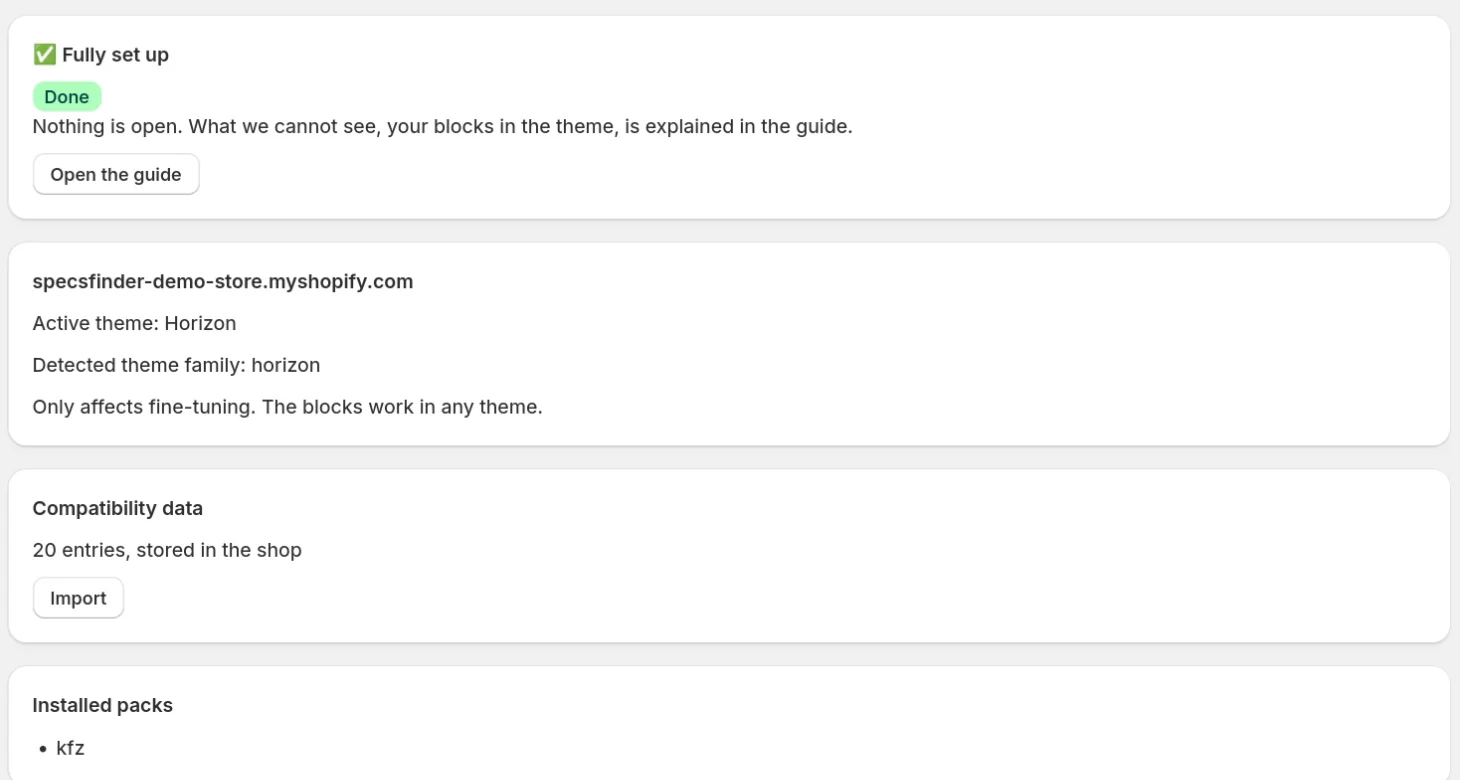
When nothing is open, the overview says so: Fully set up.
Cancelling does not need an uninstall. Plan → Switch back to Free ends Full at once; the unused part of the period is credited. Your definitions and values stay in your shop, every block keeps working, and you can subscribe again at any time. If you uninstall the app, the fields and their content stay in your shop too.
Overview: Fully set up, nothing is openPlan: back on the free tier, Full has ended, the data stays
If something does not look right
The import said “Import started”, but nothing arrived.
Look at the line under Recent runs. “0 imported” with errors usually means the record type did not match the file. The Template box shows the columns the chosen type expects.
“None of the columns in this file match the selected record type.”
The file is at the wrong target and nothing was written. The message names the record type it belongs to. Choose that type and send the same file.
“Row …: handle occurs more than once” or “is empty”.
Every row needs its own handle. Fix the row named in the message and import again.
“Skipped columns: …”
These columns are not fields of the chosen record type and were ignored. Usually a typo in the header or a column for another record type.
“… not found and skipped” in section 2 or 3.
The file names records or products that do not exist. Import the records in section 1 first; check product handles and SKUs for typos.
A product lost links after an import in section 3.
Section 3 sets exactly the list from the file for every product in it. Include all links of that product in the file.
The specification table on the product is empty.
The groups are attached but have no rows. Run section 2 (groups to rows).
A filter does not show in my shop.
It needs to exist in Search & Discovery (step 9) with the source Product metafield and exactly the key from the app's list.
“Does it fit?” says “Pick yours above”.
The customer has not chosen a vehicle or device yet. Place the Compatibility picker above the block, or anywhere the customer visits first; the pick is remembered across pages.
Quick view shows nothing.
The values come from the specification table block. Add it to your product template.
The Entries column shows fewer entries than I imported.
Shopify updates that count with a delay after bulk imports. Open the record type under Content → Metaobjects to see the real list.
“Are the filters live in the shop?” says Cannot tell.
Your storefront is password protected, so the app cannot read it. Once the password is off, the check shows which filters arrive.
Getting started says properties have changed since the last run.
Products were edited after the filters were derived. Filters → Make properties filterable → Preview → apply brings them up to date.
Still stuck?
Write to us with your shop address and what you see on screen. We answer in English and German.